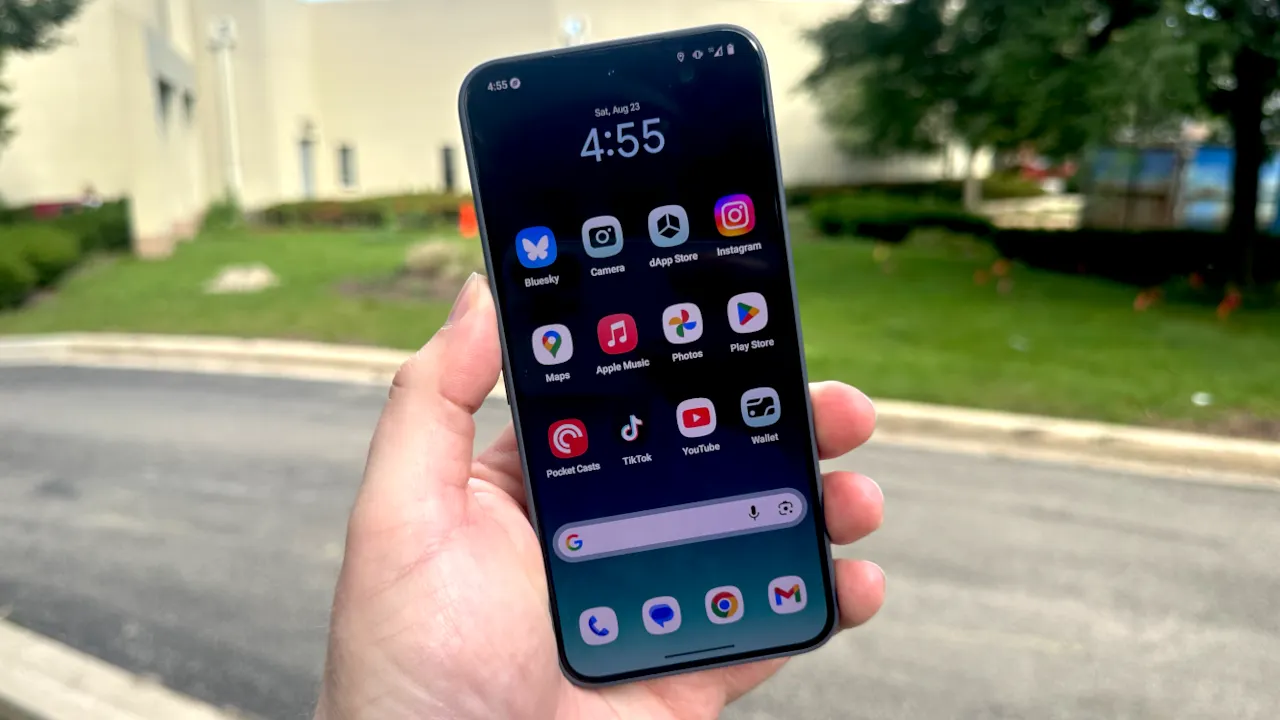
The Solana Saga phone has redefined what it means to be mobile-first in the crypto era. For anyone serious about managing Solana-based assets on the go, the Phantom Wallet is more than just an app - it’s a gateway to DeFi, NFTs, and a new paradigm of self-custody. As we move into 2025, installing and securing Phantom on your Saga device is not only easier than ever but also essential for any user who values both convenience and security.
Why Phantom Wallet Is Essential on Your Solana Saga Phone
Phantom has earned its reputation as the leading non-custodial wallet for Solana due to its intuitive interface and robust security features. On the Saga phone, these strengths are amplified by native integration with the Solana ecosystem. Users can store, send, receive, and stake SOL or any SPL token directly from their mobile device, no laptop or desktop required.
This seamless experience is particularly important in 2025’s fast-paced DeFi landscape. With the proliferation of mobile-first dApps and NFT marketplaces, having your wallet always at hand means you can act on opportunities instantly, whether that’s minting a hyped NFT collection or staking your SOL for passive yield.
Step-by-Step: Installing Phantom Wallet on Your Saga Device
Getting started is straightforward:
- Access the dApp Store: On your Solana Saga phone, open up the dApp Store, a curated marketplace designed specifically for secure crypto apps.
- Search for Phantom Wallet: Use the search bar to quickly find "Phantom Wallet. " Double-check that you’re selecting the official app developed by Phantom Technologies Inc. , as this ensures authenticity.
- Download and Install: Tap 'Install' and let your device handle the rest. Installation typically completes within seconds thanks to Saga’s optimized hardware.
The beauty of using Phantom on a purpose-built device like Saga is that every step has been tailored for security. Unlike generic Android installs, here you’re operating within an environment built from scratch for crypto self-custody.
Your First Steps Inside Phantom: Setup and Security
The moment you open Phantom for the first time, you’ll be greeted by an onboarding flow that puts security front and center, a necessity in today’s landscape of phishing attempts and wallet exploits.
- Create New Wallet: Tap this option unless you already have a recovery phrase from another device. (If migrating from another wallet or restoring after a reset, use "Import Existing Wallet. ")
- Record Your Recovery Phrase: The app generates a unique 12-word recovery phrase. Write this down physically, never store it digitally or share it with anyone. This phrase is your lifeline if your phone is lost or damaged.
- Create a Strong Password: Choose something unique; avoid passwords reused elsewhere. This will be required every time you open Phantom on your Saga device.
- Enable Biometric Security: If your Saga supports fingerprint or facial recognition (and most do), enable it now for an extra layer of protection without sacrificing convenience.
If you’re new to securing wallets on mobile devices or want advanced tips on hardening your setup further, check out our guide: How to Set Up a Solana Saga Phone for Secure Mobile DeFi Transactions.
Add Funds: Preparing Your Mobile Wallet for Action
No wallet setup is complete until it’s funded and ready to transact. In Phantom’s clean interface, tap ‘Deposit’ to reveal your unique Solana address, a string of characters representing your personal vault on-chain. Copy this address carefully if transferring funds from another exchange or wallet; always double-check before sending any SOL or tokens.
Once your wallet is funded, you’re ready to experience the full power of Solana’s mobile-first ecosystem. The Saga phone’s integration means transactions are not only fast but also optimized for security, with hardware-backed signing and biometric authentication protecting every move you make. Whether you’re receiving an NFT airdrop, swapping SPL tokens, or staking SOL, Phantom on Saga delivers a frictionless experience tailored for the realities of 2025’s crypto landscape.
Connecting to dApps: Unlocking DeFi and NFTs on the Go
With your wallet loaded, the next step is connecting to Solana-based decentralized applications (dApps). The process is refreshingly simple:
- Navigate to Your dApp: Open your preferred mobile browser or in-app browser and go to the desired Solana dApp, be it a DEX, NFT marketplace, or DeFi protocol.
- Connect Wallet: Tap ‘Connect Wallet’ on the dApp interface. Select ‘Phantom’ from the options provided.
- Authorize Connection: A prompt will appear in Phantom requesting permission. Review and approve, this handshake ensures only you control which apps can access your wallet.
This workflow empowers Saga users to participate in launches, governance votes, or yield farming opportunities instantly, no need to scramble for a laptop or worry about missing out because you’re away from your desk. The mobile-first approach isn’t just about convenience; it’s about staying ahead in a market that never sleeps.
Best Practices: Security Tips for Phantom on Saga
The rise of mobile crypto has brought new attack vectors, phishing links, fake apps, and social engineering abound. Here are key best practices every Saga user should follow:
- Never Share Your Recovery Phrase: No support agent or friend should ever ask for it. If someone does, it’s a scam.
- Avoid Public Wi-Fi When Transacting: Stick to trusted networks when sending large amounts or interacting with new dApps.
- Bookmark Official dApp URLs: Always double-check site addresses before connecting your wallet.
- Update Regularly: Keep both your Saga phone OS and Phantom app up-to-date to benefit from the latest security patches.
If you want deeper strategies for safeguarding your device and digital assets, including advanced recovery methods and hardware integrations, see our comprehensive expert guide: How to Set Up and Secure Your Solana Saga Phone for Mobile DeFi Apps.
The Mobile-First Future: Why Early Adoption Matters
The story of crypto in 2025 is increasingly written on mobile screens. With Phantom Wallet installed on your Solana Saga phone, you’re not just keeping pace, you’re positioning yourself at the forefront of decentralized finance’s next wave. As ecosystems like Solana continue to prioritize speed and accessibility, being able to trade, mint NFTs, or manage DAO memberships from anywhere gives users an undeniable edge.
The combination of hardware-level security from Saga and software excellence from Phantom creates an environment where self-custody doesn’t mean sacrificing usability. This synergy is what makes the Solana mobile stack so compelling, and why more projects are launching exclusively with mobile-first support each quarter.
If you’ve followed this guide step-by-step, from installation through first transaction, you’ve unlocked a powerful toolkit designed for today’s dynamic crypto world. Explore more resources below if you want hands-on walkthroughs or advanced tips tailored for power users looking to maximize their mobile DeFi potential.



No comments yet. Be the first to share your thoughts!