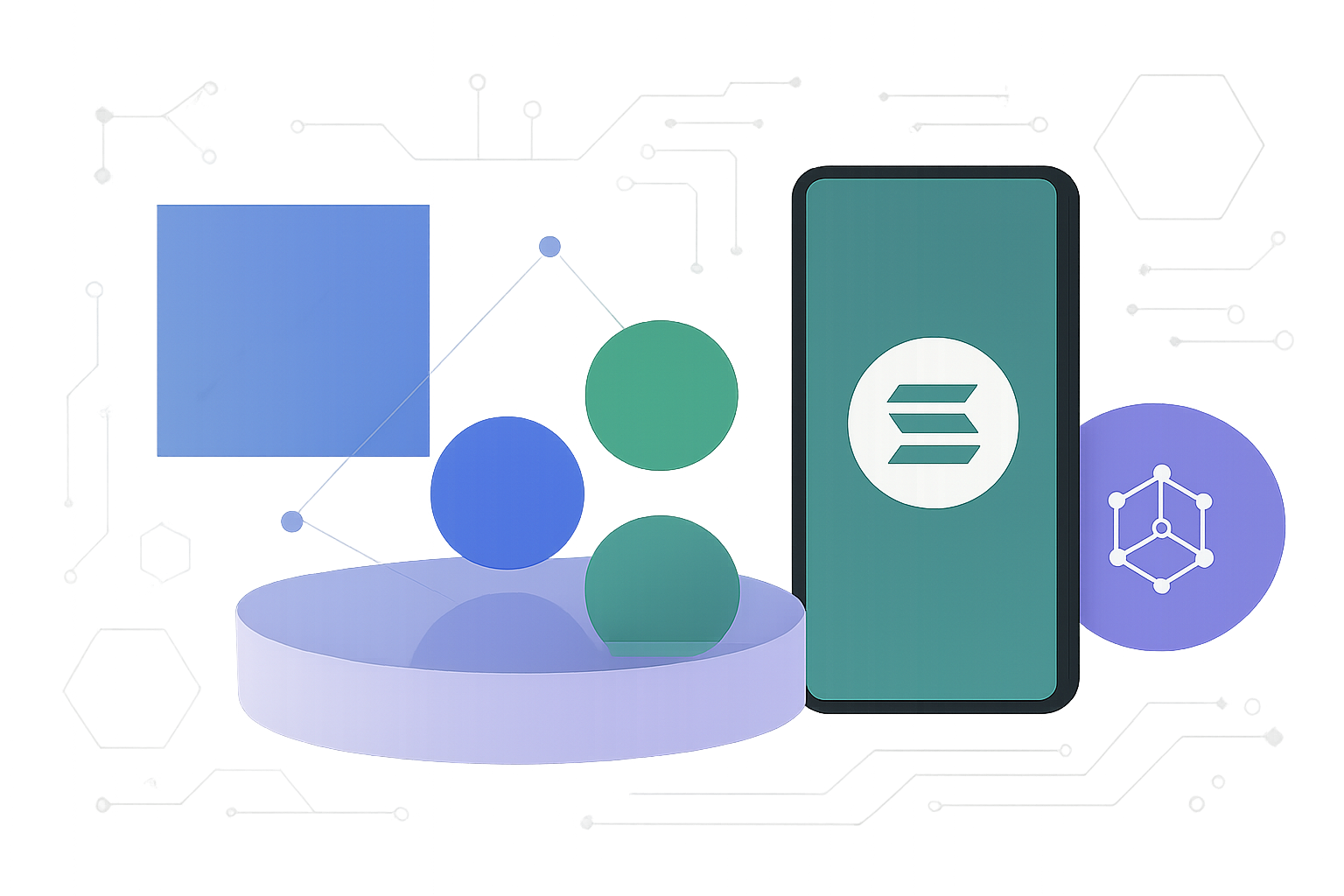
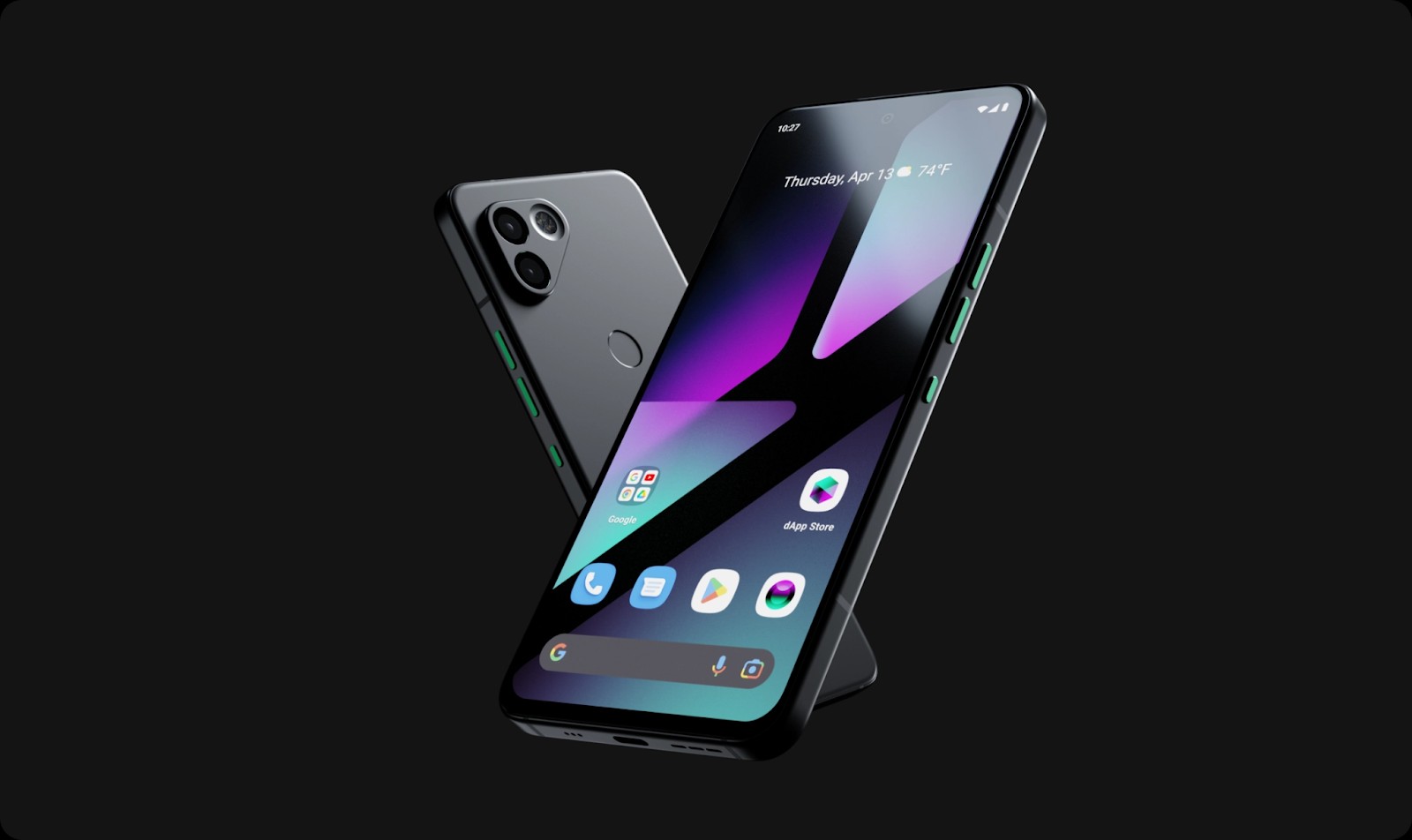
The Solana Saga phone stands at the intersection of cutting-edge mobile hardware and secure crypto functionality. As a purpose-built Android device for Web3, it’s engineered to deliver seamless DeFi access while putting security first. If you’re aiming to use your Saga for mobile DeFi transactions, a meticulous setup process is essential. Let’s break down the steps and best practices for safeguarding your assets and maximizing your mobile-first crypto experience.
Getting Started: Power On and Prepare Your Solana Saga
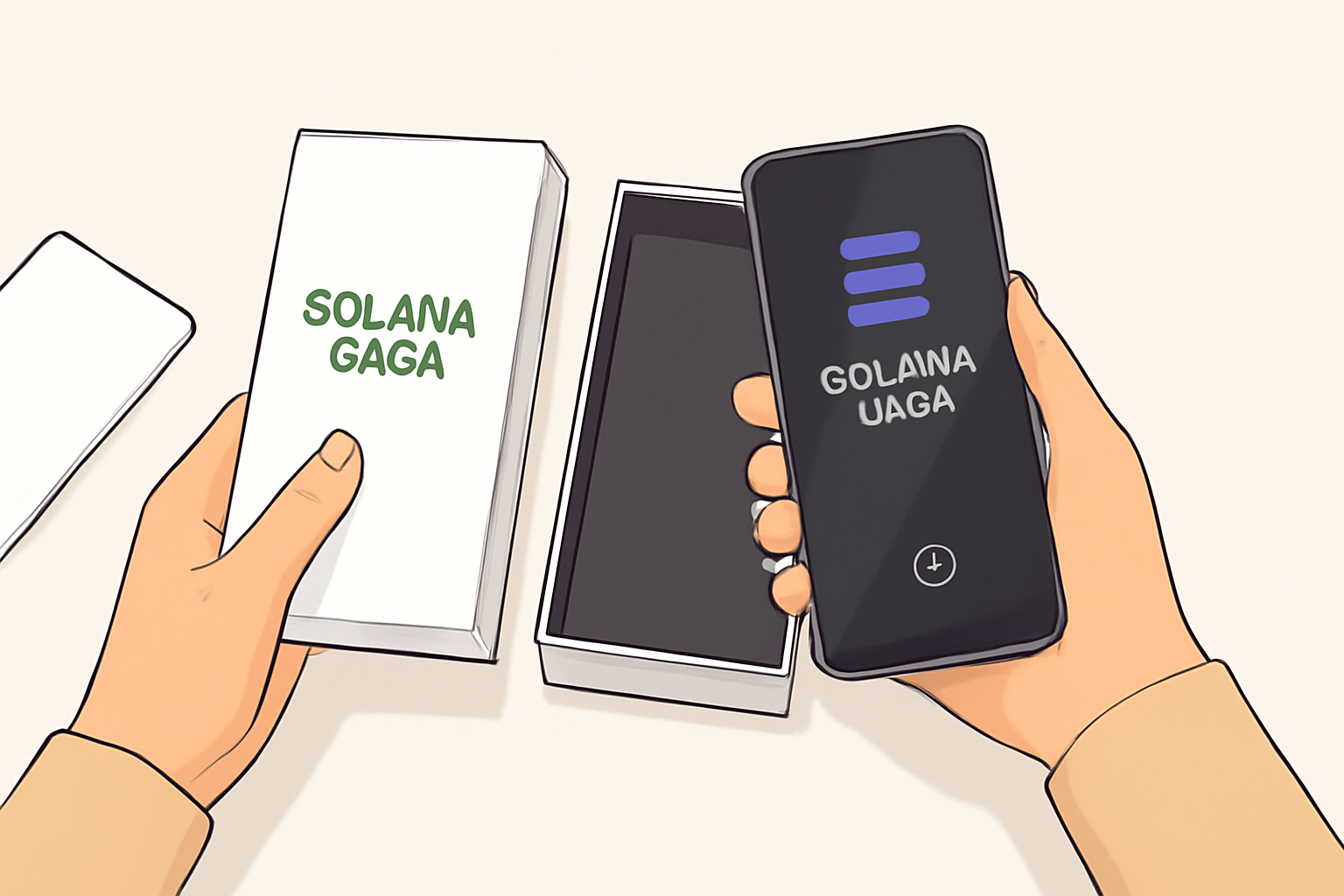
Begin by unboxing your Solana Saga and powering it on. Follow the on-screen prompts to choose your language, connect to Wi-Fi, and complete the standard Android setup. This foundational step ensures your device is ready for Web3 interactions.
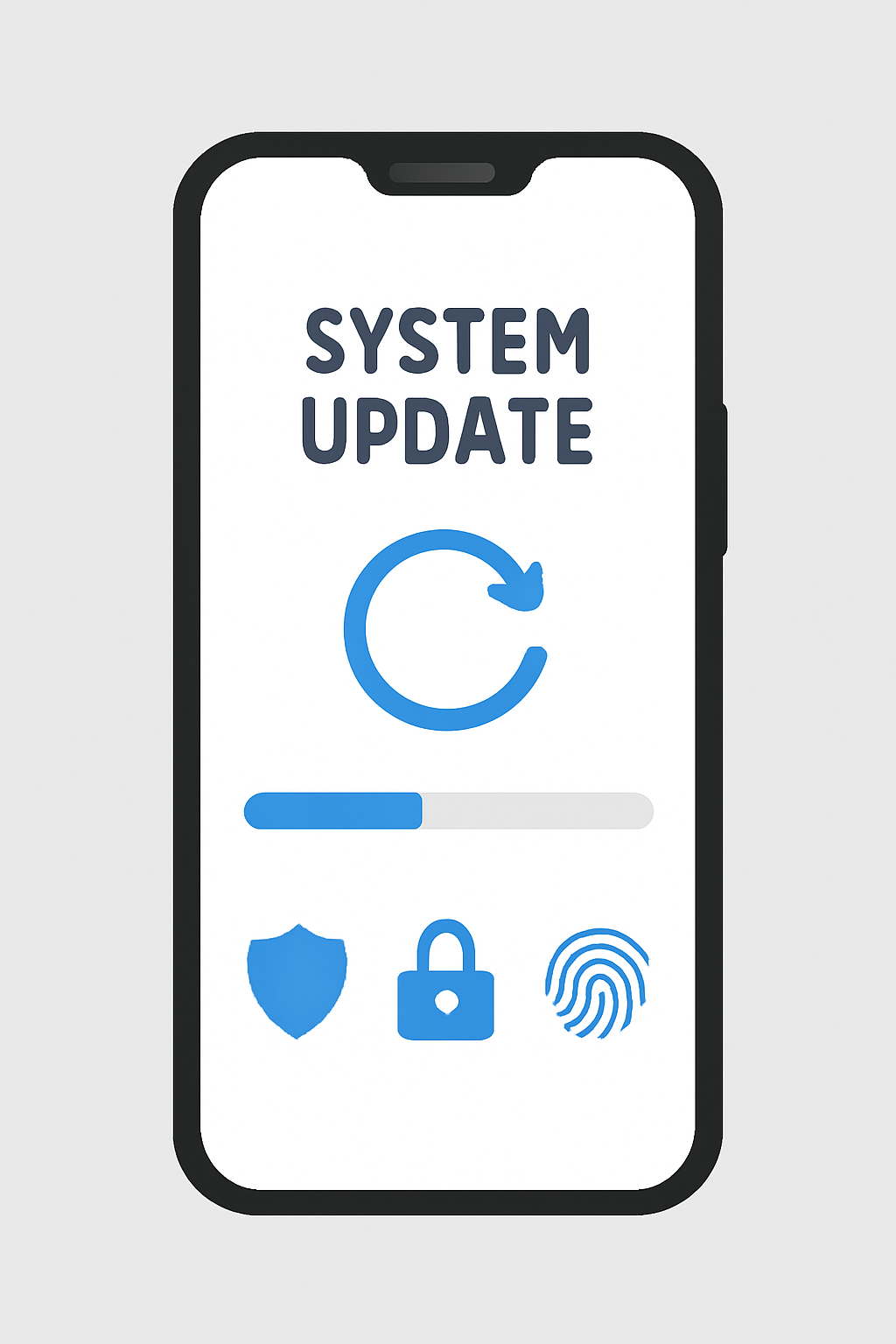
Next, prioritize device security. Navigate to Settings and gt; System and gt; System update and confirm you’re running the latest firmware. Security patches and compatibility updates are critical, especially as the Web3 landscape evolves rapidly. Outdated software can expose vulnerabilities, so make this a non-negotiable habit.
Enabling Seed Vault: The Heart of Secure Mobile DeFi
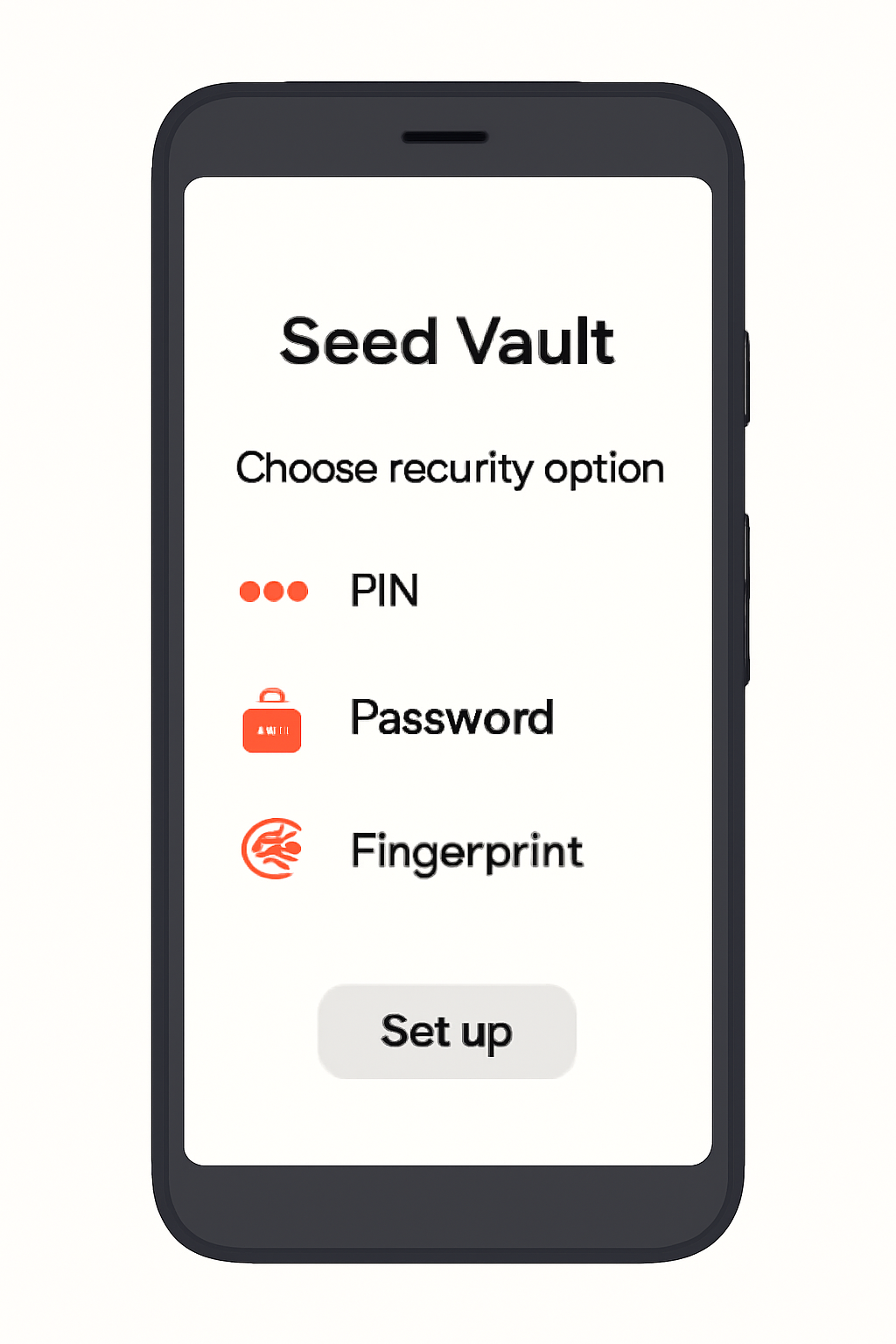
The Seed Vault is the Saga’s hardware-backed enclave for private key management. Unlike traditional software wallets, Seed Vault isolates your keys from the main Android OS, minimizing exposure to malware and phishing attempts. To activate it:
- Go to Settings and scroll to Seed Vault.
- Follow the prompts to create your secure enclave.
- Assign a unique nickname for easy identification, especially if you plan to manage multiple wallets.
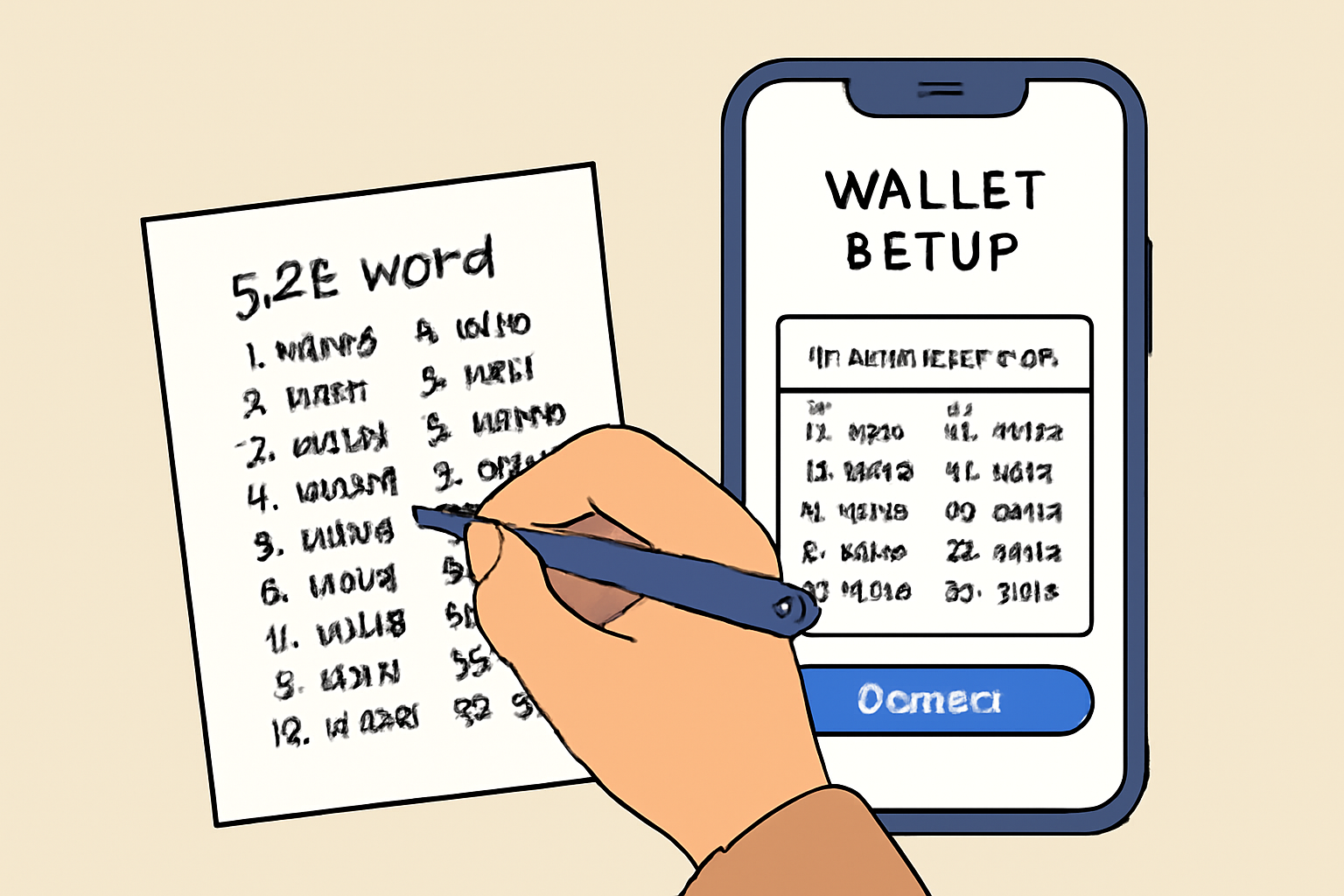
During setup, you’ll be prompted to create or import a wallet. If you opt to create a new one, the device will generate a 24-word seed phrase. Write this down and store it offline. Never share your seed phrase or store it digitally in cloud services or messaging apps. For more on this process, check out our step-by-step guide.
Biometric Security: Your Fingerprint is Your Signature
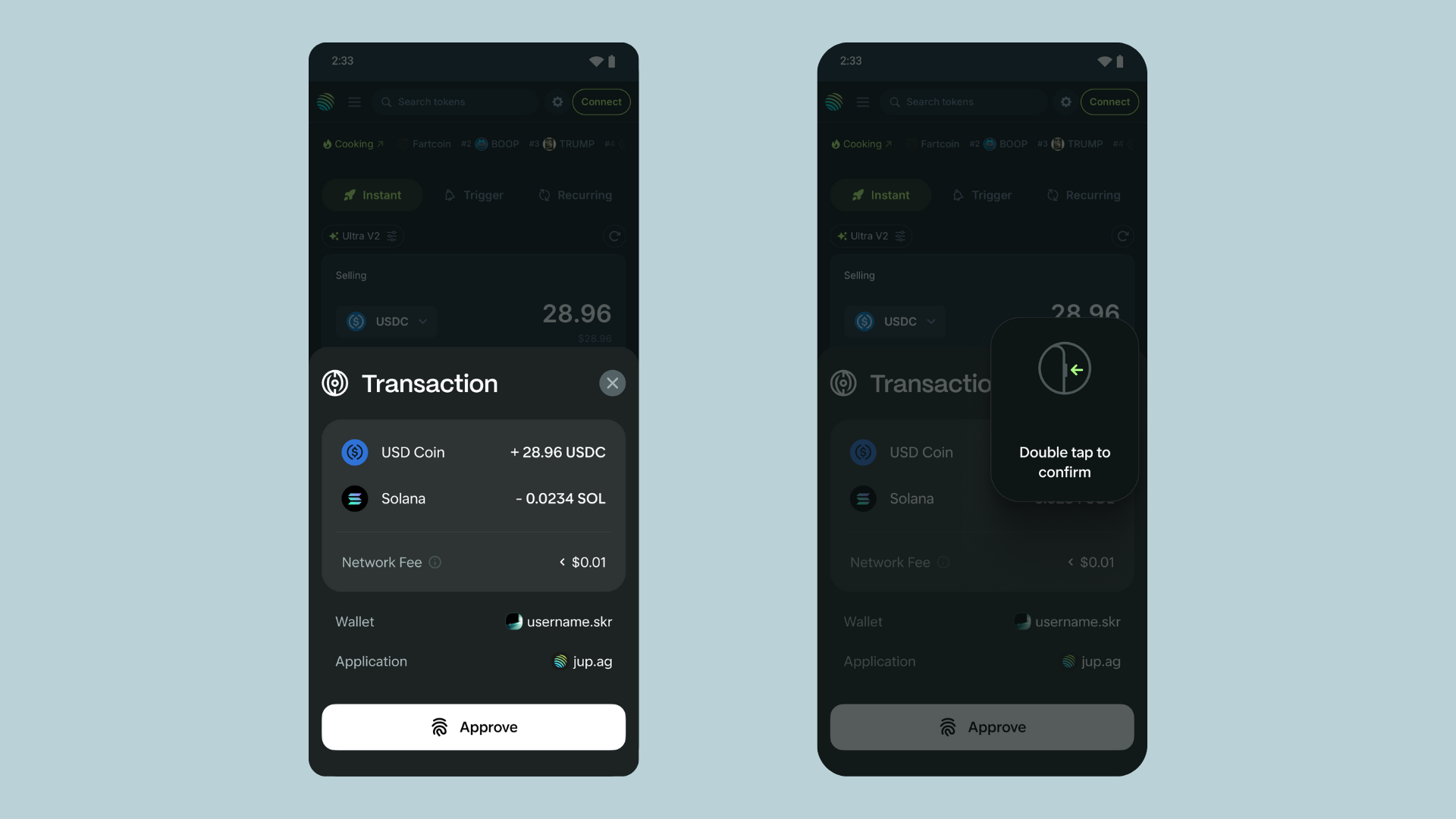
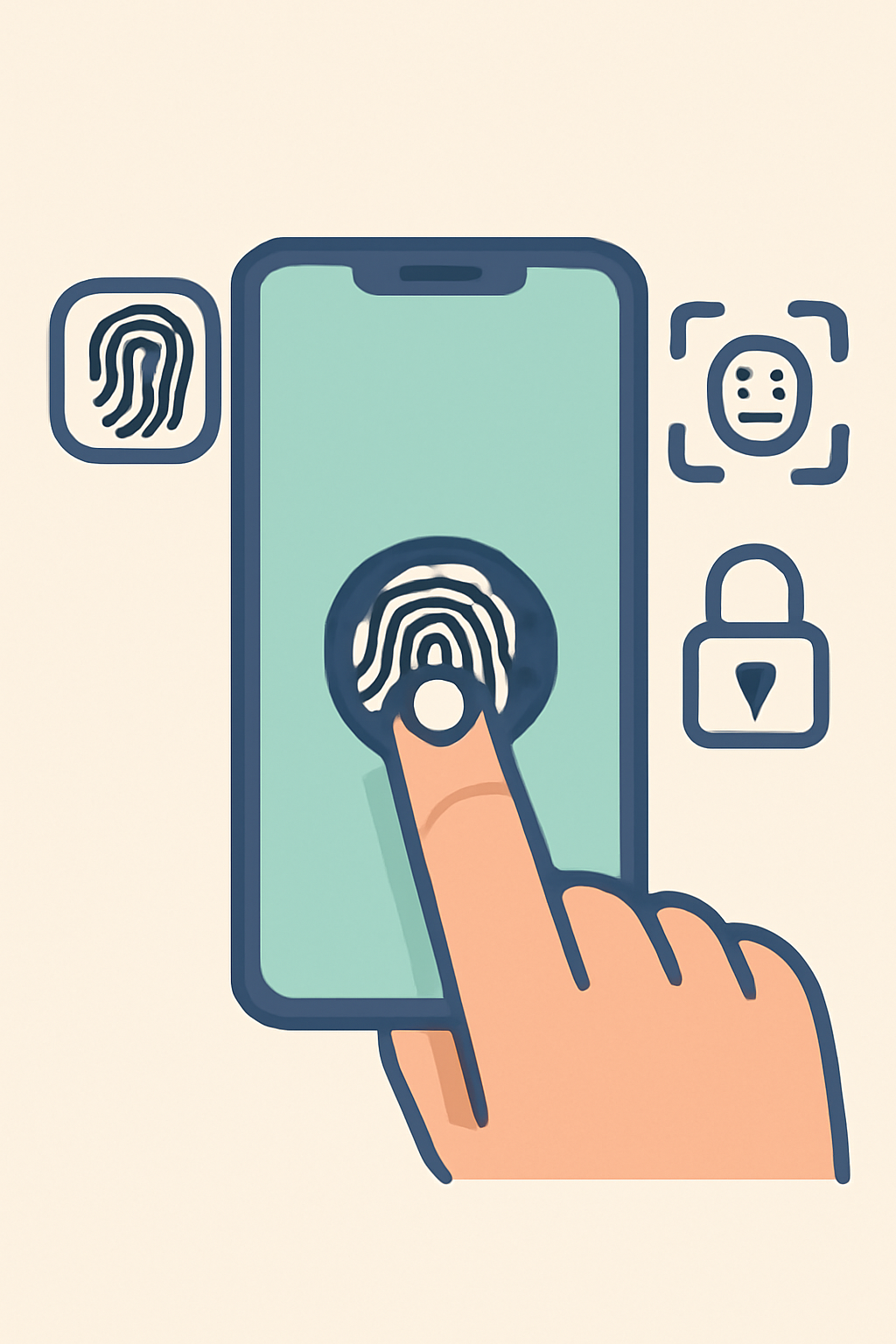
One of the Saga’s standout features is its integration of biometric authentication for transaction approvals. By registering your fingerprint or facial recognition, only authorized users can sign on-chain transactions through Seed Vault-protected wallets. This adds an essential layer of defense against unauthorized access, especially if your device is lost or stolen.
After enabling biometrics in Settings, configure your preferred wallet app, such as Phantom or Solflare, to require biometric approval for every transaction. This not only streamlines daily DeFi use but also ensures that even if someone gains physical access to your phone, they cannot move funds without your biometric signature.
Accessing the Solana dApp Store and Installing Wallets
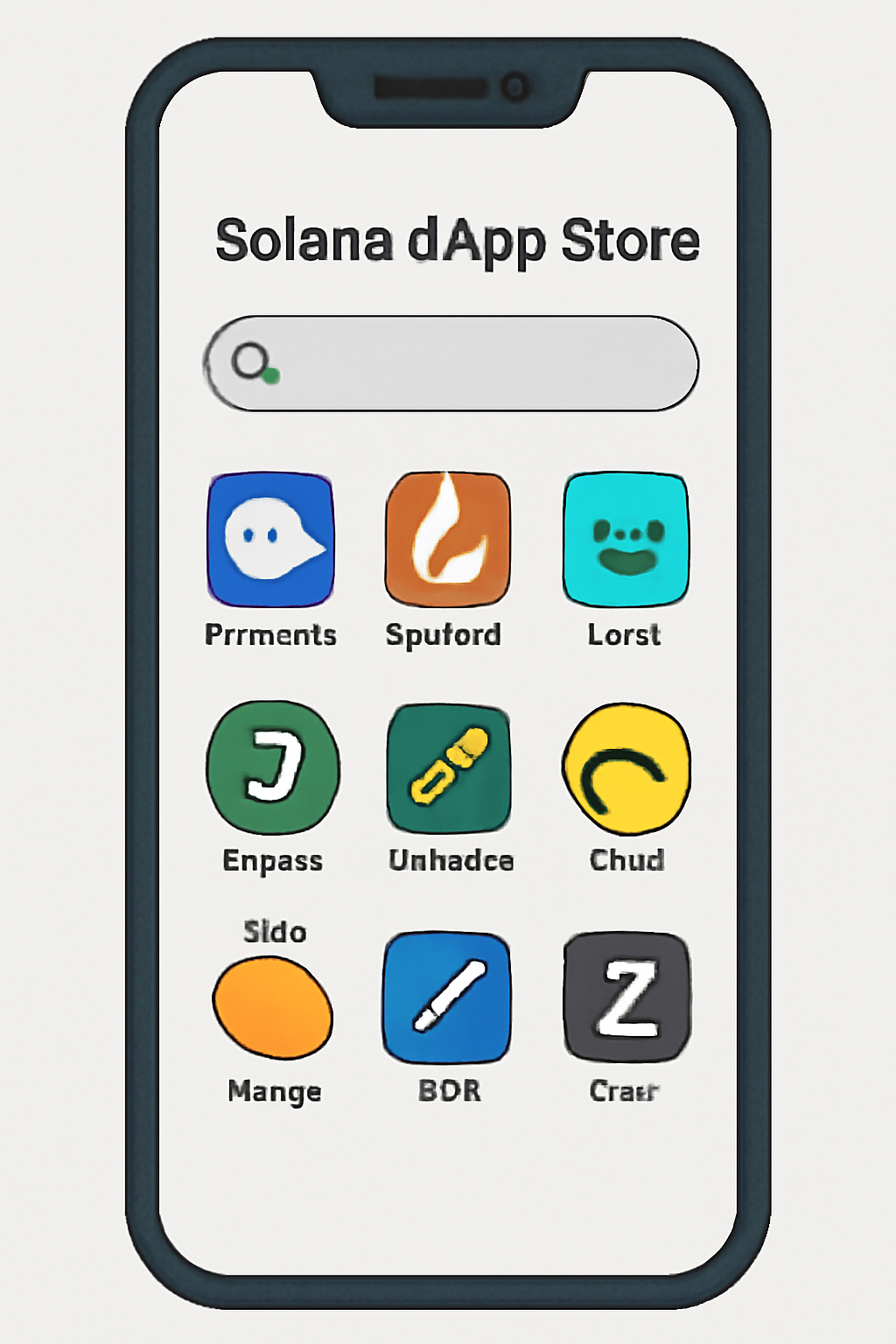
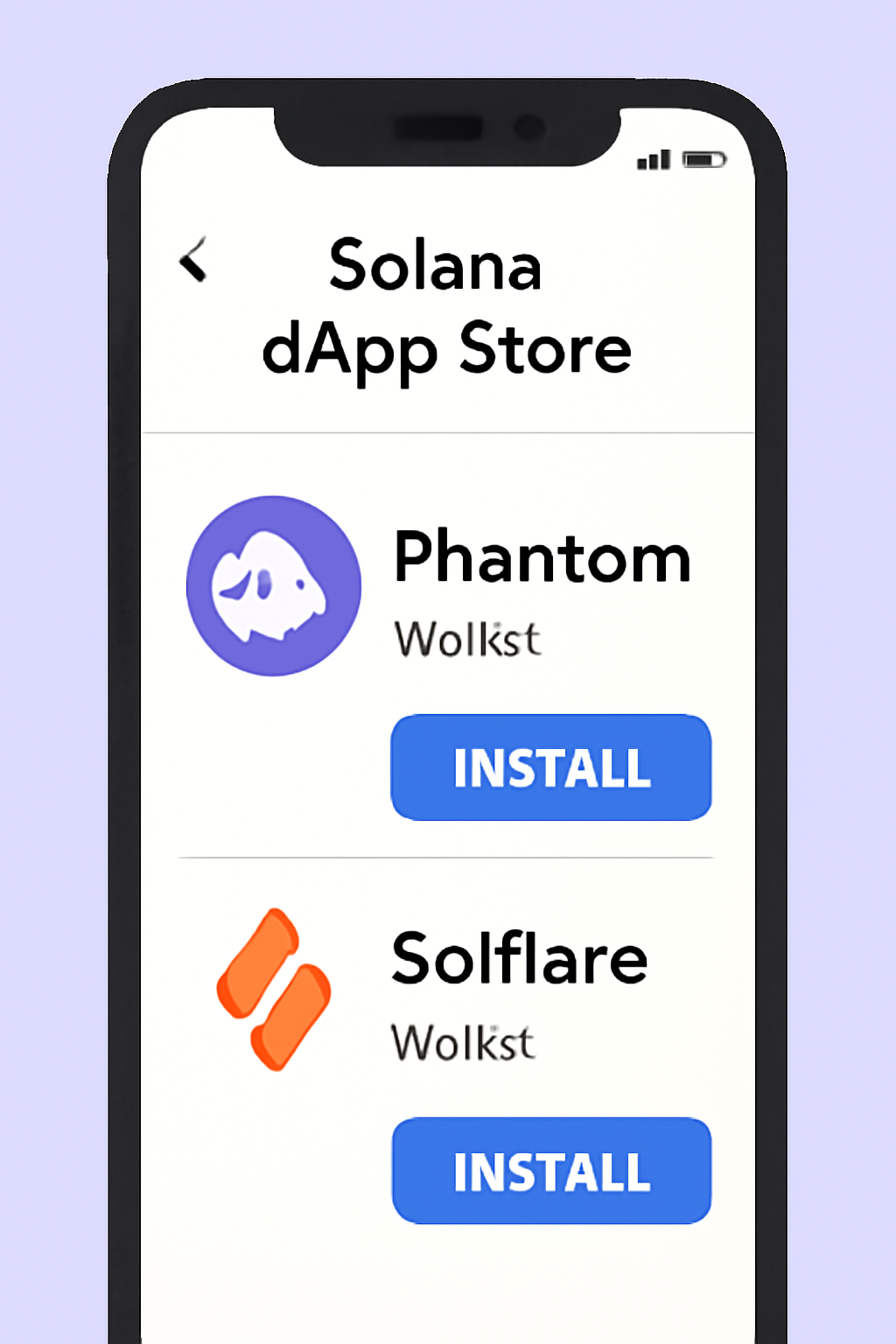
The pre-installed Solana dApp Store is a curated marketplace for ecosystem apps and wallets. Only download DeFi apps from this official source to avoid malicious software masquerading as legitimate tools. Search for reputable wallets like Phantom or Solflare, both of which are optimized for mobile-first DeFi on Solana.
After installation:
- Open the wallet app and choose to create a new wallet or import an existing one using your recovery phrase.
- Follow prompts carefully, never enter your seed phrase outside the Seed Vault environment.
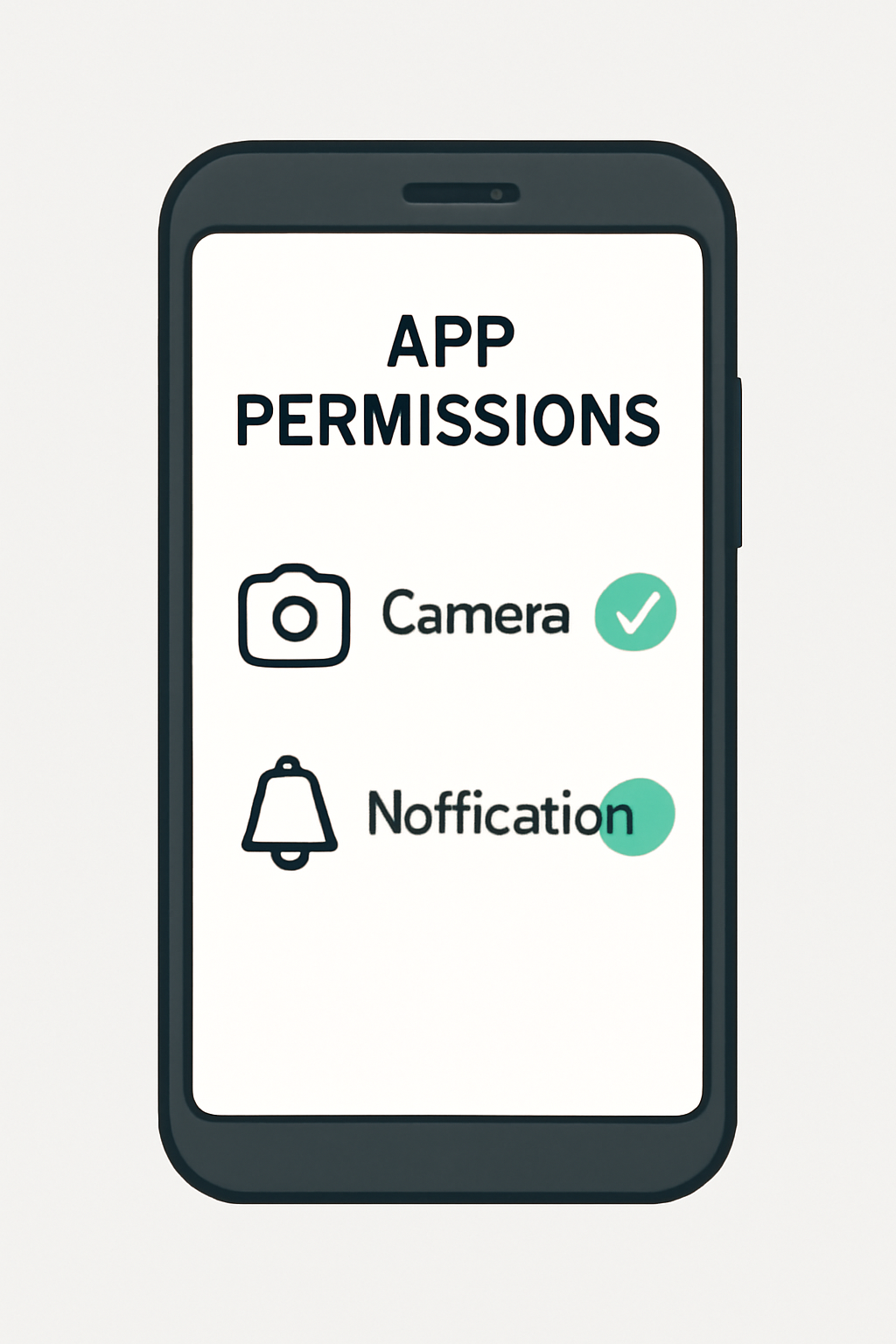
- Grant only necessary permissions (camera, notifications) to ensure smooth interaction with QR codes and push alerts from DeFi platforms.
For advanced users or those managing multiple accounts, consider setting up additional wallets within Seed Vault and labeling each for clarity. This makes tracking balances across DeFi protocols more intuitive while maintaining top-tier security controls.
Securely Setting Up Your Solana Saga Phone for DeFi
Security Best Practices: Protecting Your Mobile DeFi Experience
Mobile-first crypto comes with unique risks and rewards. Here are actionable best practices every Saga user should adopt:
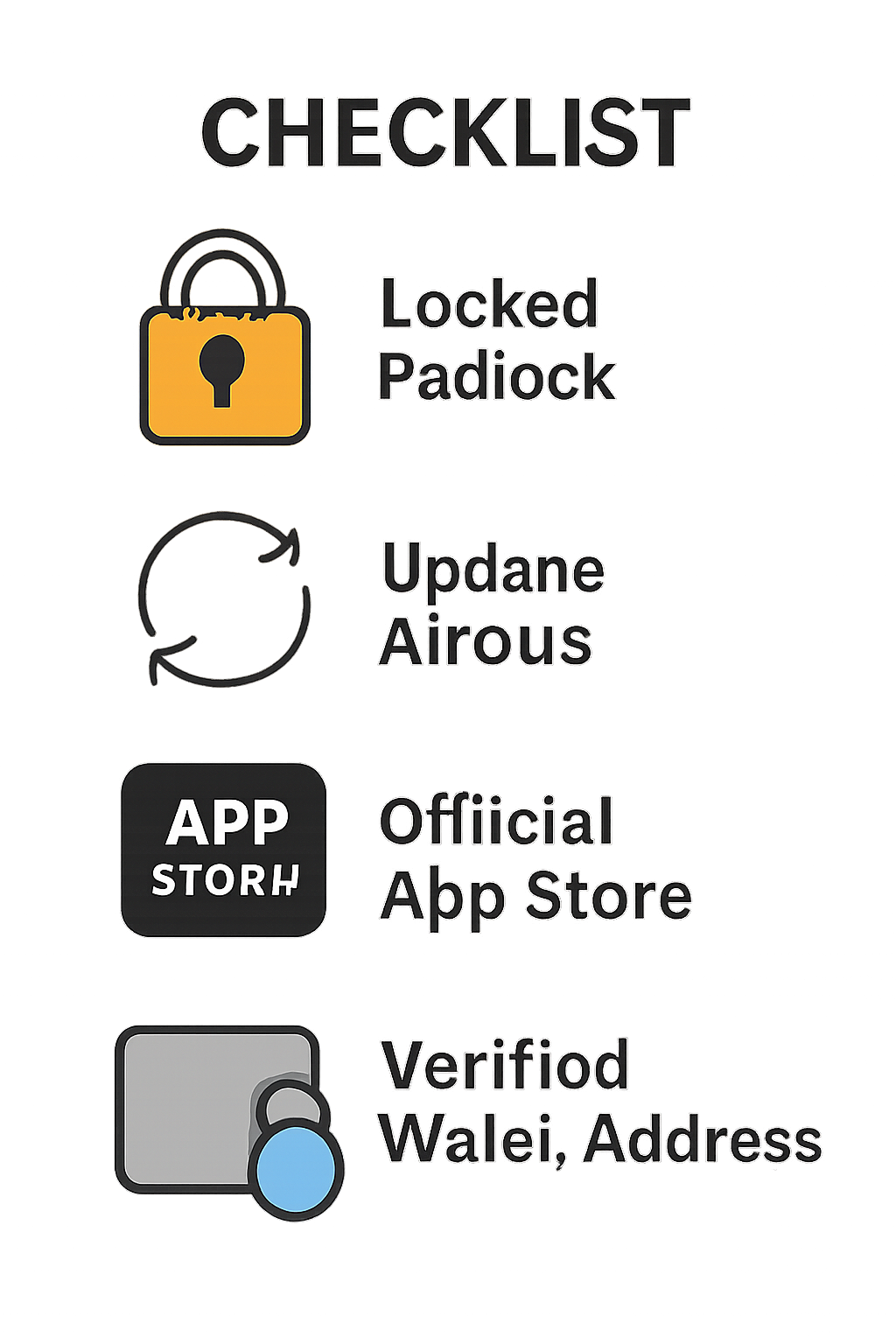
- Never share your seed phrase. Keep it offline and inaccessible to third parties.
- Set a strong screen lock: Use PIN, password, or biometrics, avoid simple patterns.
- Enable biometric authentication for all wallet transactions.
- Update firmware and wallet apps regularly for the latest security enhancements.
- Double-check wallet addresses before sending SOL, phishing sites often mimic real addresses with subtle changes.
- Download only from the official dApp Store, never sideload apps from unknown sources.
If you’re new to mobile DeFi or want more detailed step-by-step instructions, our comprehensive guide on setting up the Saga for secure DeFi covers all key points in depth.
With your Solana Saga phone now configured for secure DeFi activity, you’re well-positioned to take advantage of the mobile-first crypto ecosystem. But security isn’t a one-time event, it’s an ongoing process. The following advanced tips will help you maintain robust protection and optimize your experience as you interact with Solana DeFi protocols on the go.
Advanced Tips: Maximizing Security and Usability
- Regular Backups: Periodically verify your recovery phrase is safely stored and accessible. Consider using a fireproof safe or a specialized metal wallet for added durability.
- Monitor App Permissions: Review permissions for each DeFi app. Revoke unnecessary access to minimize your attack surface.
- Use Wallet Labels: Assign clear, unique labels within Seed Vault for each wallet. This is especially useful if you’re engaging with multiple DeFi protocols or managing both personal and business accounts.
- Test Small Transactions First: When using a new dApp or sending funds to a new address, start with a small amount of SOL to ensure everything functions as expected before committing larger sums.
If you’re interested in more granular steps for wallet management, our detailed walkthrough on setting up and securing Solana wallets on Saga is a valuable resource.
Staying Ahead: Keeping Your Saga Secure Over Time
The security landscape in mobile DeFi is dynamic. As new threats emerge, staying updated is your best defense. Here’s how to keep your Saga resilient against evolving risks:
- Subscribe to Official Channels: Follow Solana Mobile and major wallet developers on social media for timely updates on patches and security advisories.
- Check for Firmware Updates Monthly: Even if auto-updates are enabled, manually check for critical patches at least once a month.
- Avoid Public Wi-Fi for Transactions: Use cellular data or a trusted VPN when accessing DeFi apps outside your home network to prevent man-in-the-middle attacks.
Troubleshooting: Common Issues and How to Resolve Them
If you encounter connectivity issues with dApps or wallet sync errors, first verify that you’re running the latest firmware and app versions. Restarting the device can resolve most minor glitches. For persistent problems, consult the official Solana Mobile support forums or revisit our guide on securing your Saga phone for DeFi.
If you suspect your device or wallet may have been compromised (e. g. , unauthorized transactions, strange app behavior), immediately move assets to a fresh wallet set up on a separate device and contact support channels. Never disclose your seed phrase during support interactions, legitimate teams will never ask for it.
Saga Phone: A New Standard in Secure Mobile DeFi
The Solana Saga phone’s combination of hardware-backed Seed Vault, biometric authentication, and curated dApp Store sets a new standard for secure mobile crypto transactions. By following the setup process and best practices outlined above, you can confidently explore the expanding universe of Solana DeFi from the palm of your hand.
If you’re ready to dive deeper into mobile-first DeFi strategies or want hands-on tutorials for specific protocols, explore our latest resources on how to use DeFi apps seamlessly on the Solana Saga: A Mobile-First Guide for Power Users.

No comments yet. Be the first to share your thoughts!