The Solana Saga phone has carved out a reputation as the most secure and user-friendly device for mobile DeFi transactions, thanks to its unique hardware-level protections and seamless integration with the Solana ecosystem. If you’re ready to make the leap to mobile-first crypto, you need to set up your Solana Saga correctly, because your security, assets, and peace of mind depend on it.
Why Mobile-First Security Matters for DeFi
With Solana DeFi activity surging and Binance-Peg SOL (SOL) trading at $188.62 ( and $4.12 in the past 24 hours), the stakes for mobile security are higher than ever. The Saga isn’t just another Android device: it’s engineered for secure, on-chain transactions, featuring the Seed Vault: a secure enclave that keeps your private keys out of reach from malicious apps and hackers. But even the best hardware needs the right setup to protect your assets.
Before you dive into DeFi apps and NFT marketplaces, take the time to lock down your device. Biometric authentication, firmware updates, and trusted app sources are non-negotiable pillars of mobile DeFi security. Remember: your keys, your crypto, your control.
Step-by-Step: Setting Up Your Solana Saga for Secure DeFi Transactions
Securely Set Up Your Solana Saga for DeFi Wallets
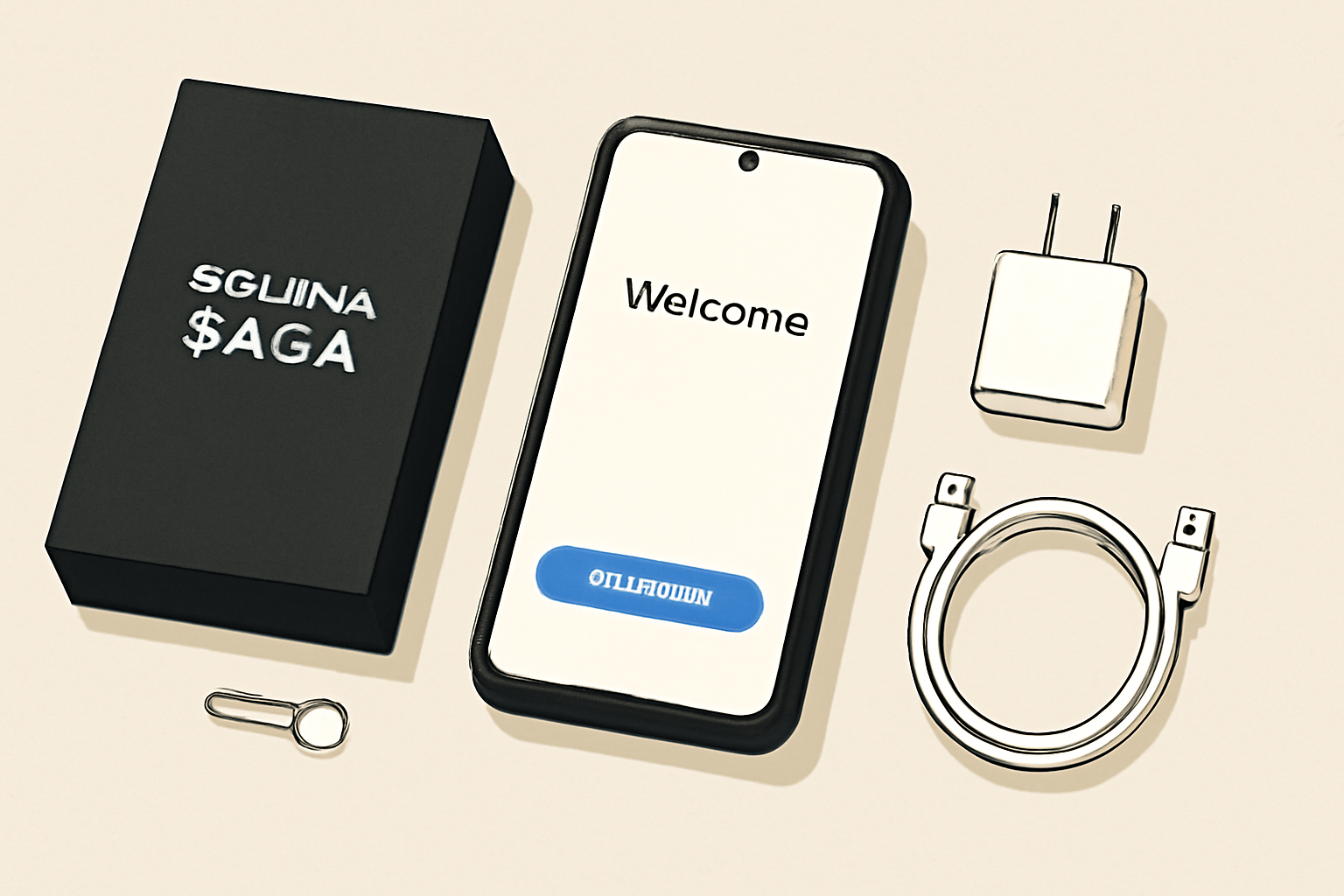
Let’s break down the essential steps for a bulletproof Solana Saga setup:
- Unbox and Power On: Follow the prompts to select your language and connect to Wi-Fi.
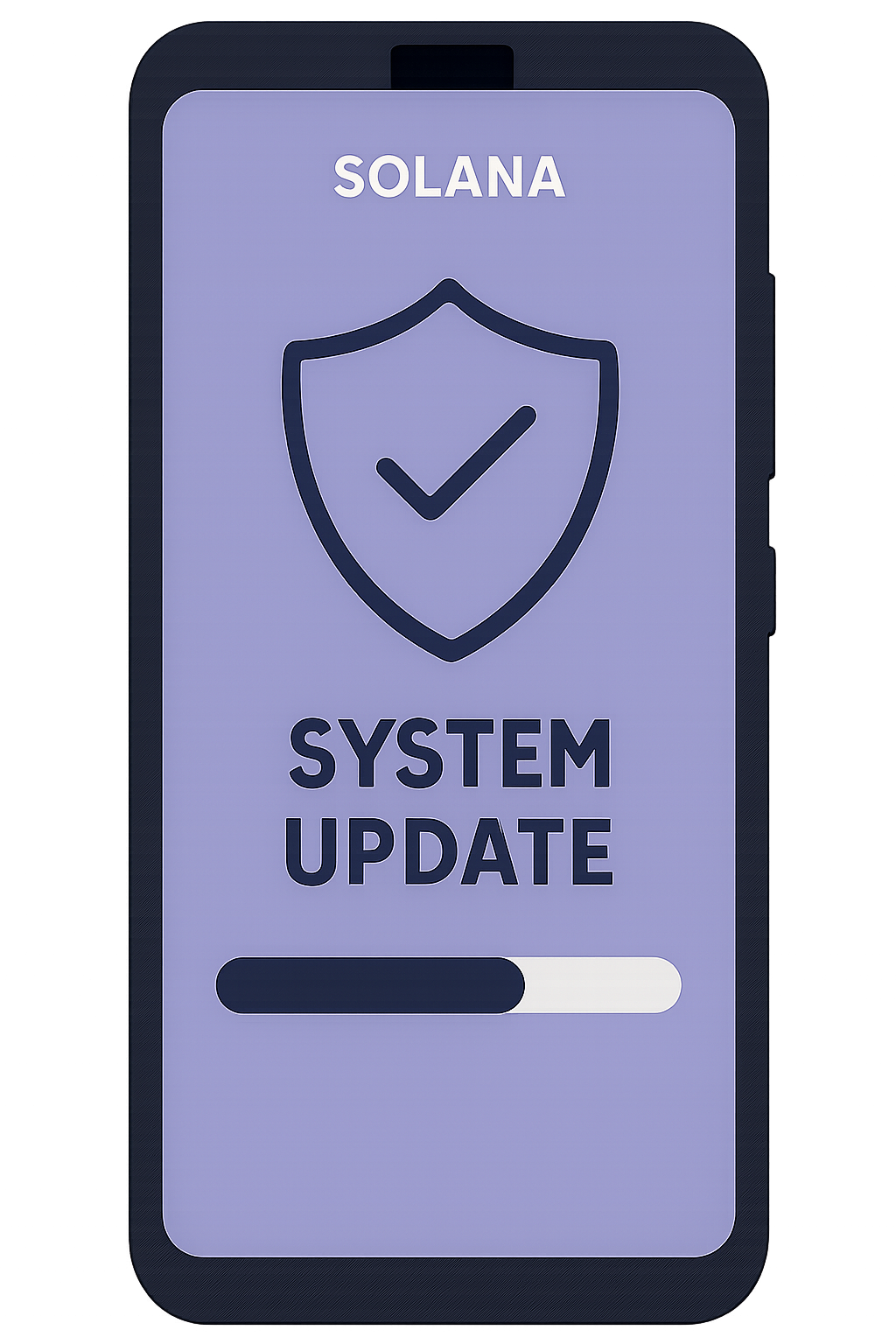
- Update Firmware: Go to Settings and gt; System and gt; System update. Never skip this step, security patches are critical.
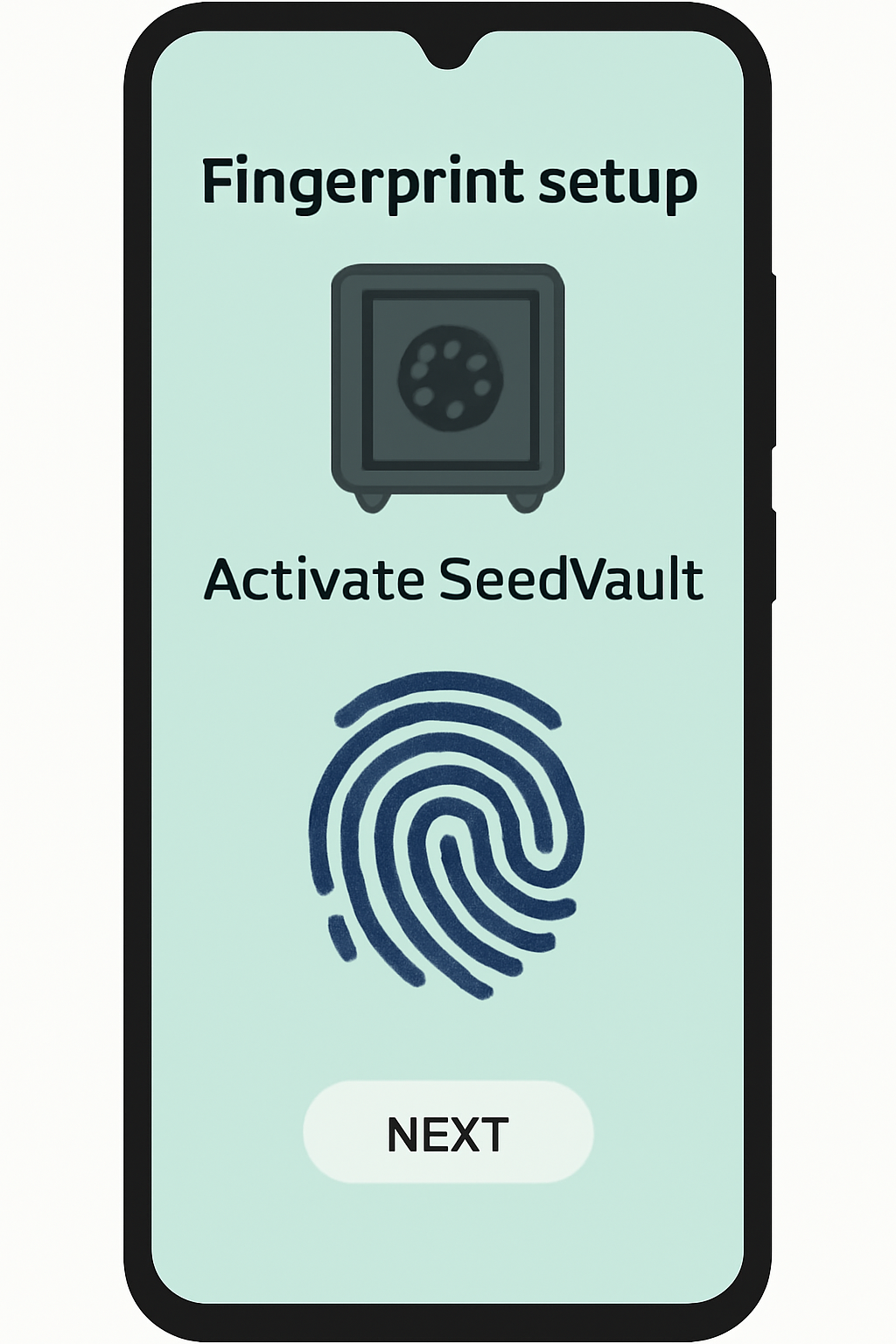
- Set Up Security Features: Enable a strong screen lock and configure biometrics (fingerprint/face). Activate the Seed Vault for hardware-level key protection.
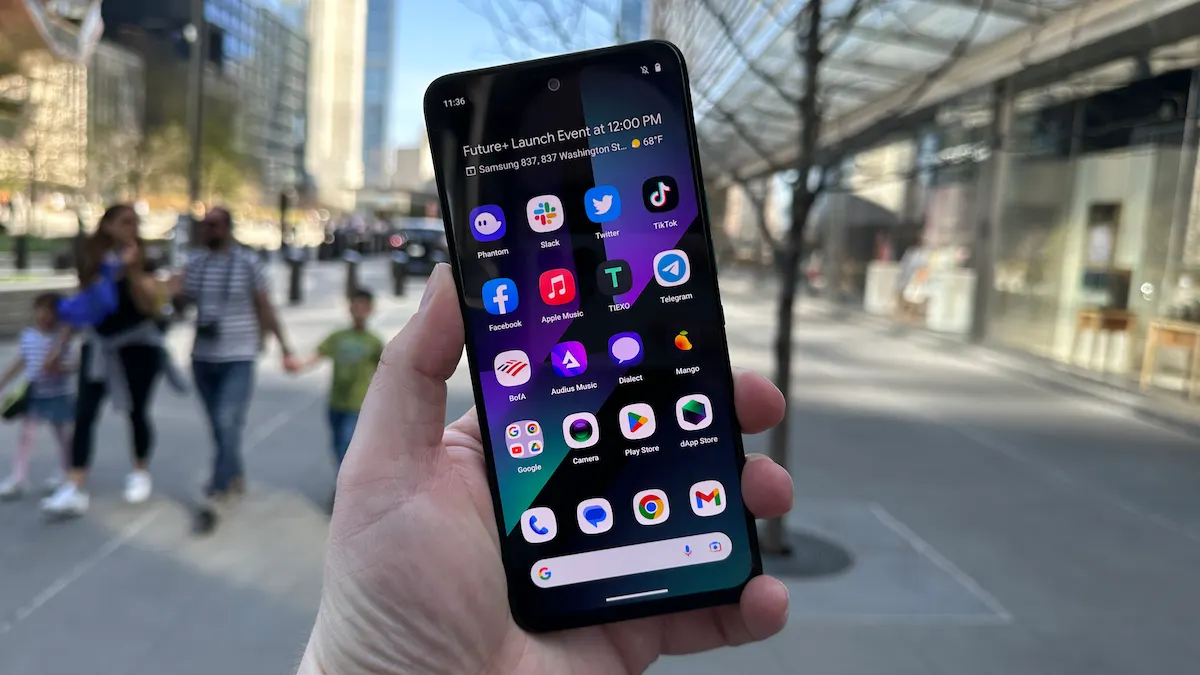
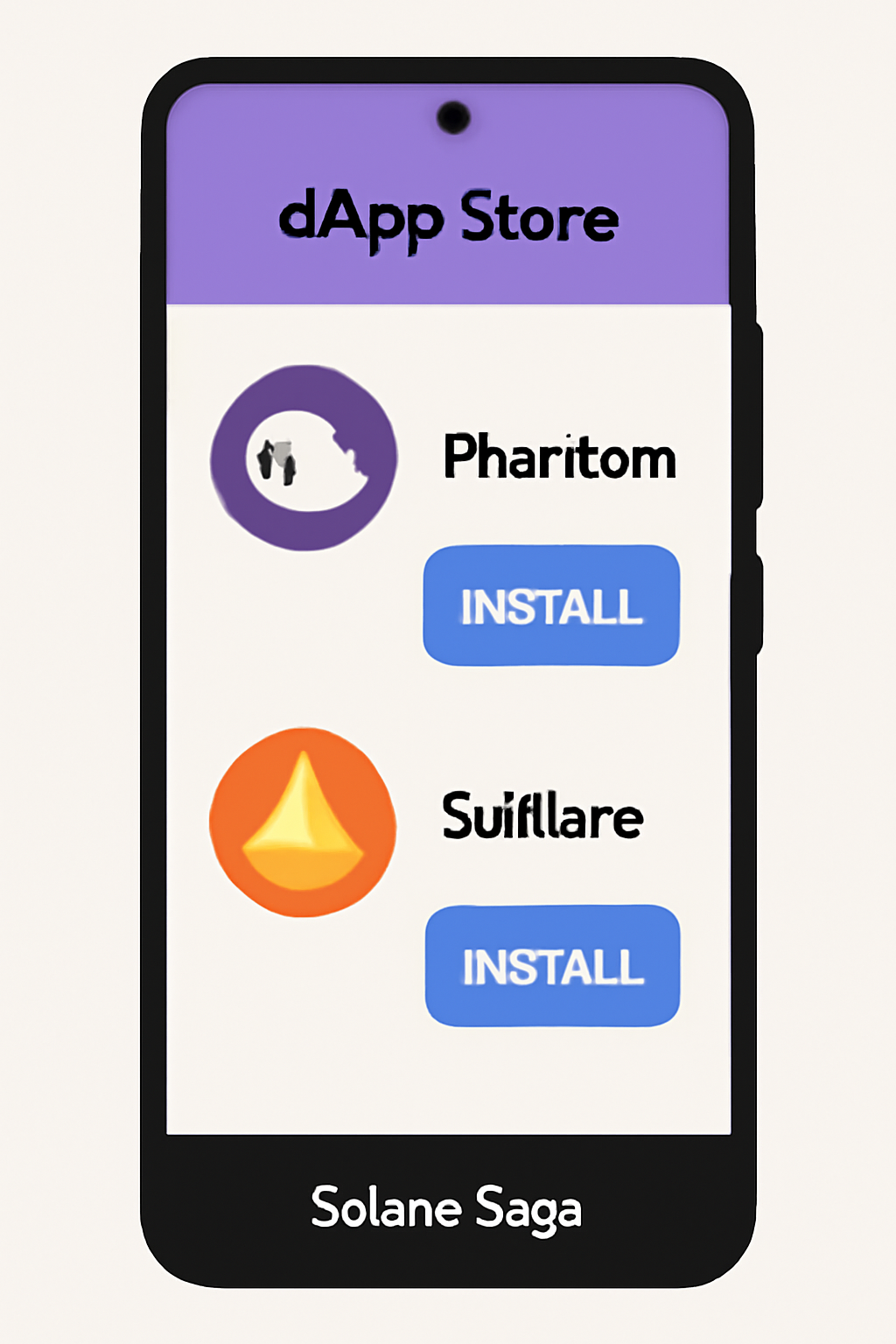
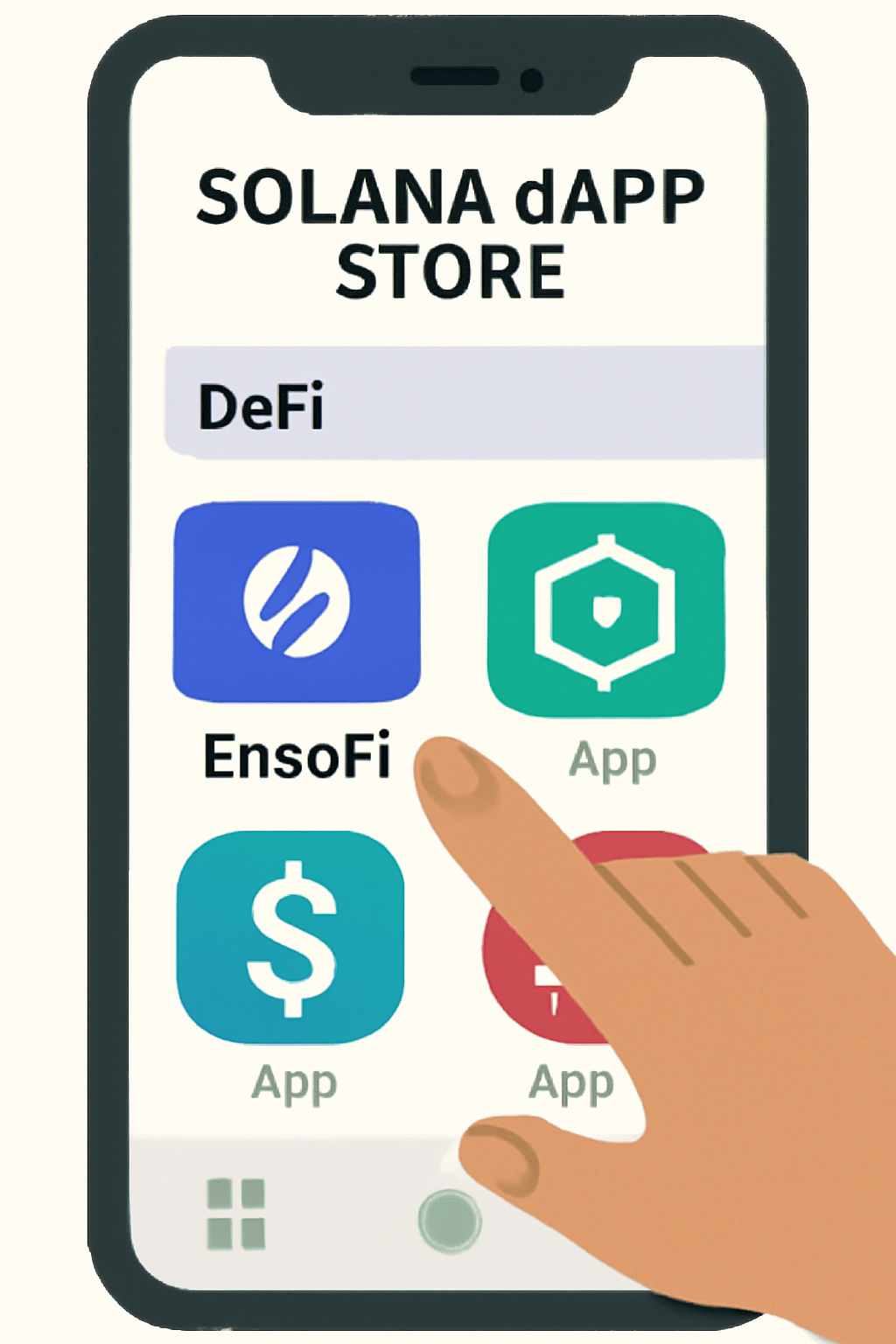
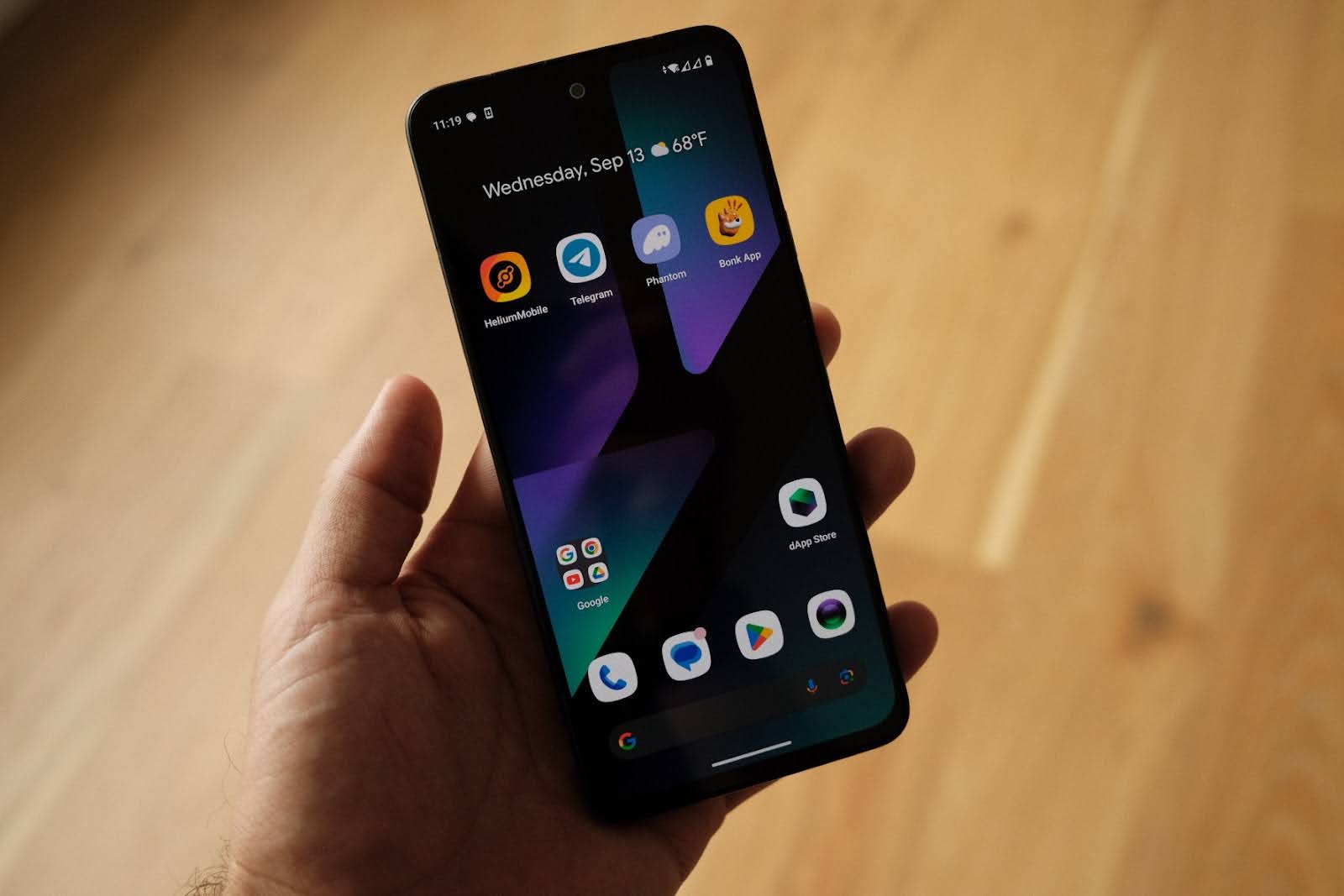
- Access the Solana dApp Store: Only install wallet apps like Phantom or Solflare from this curated store.
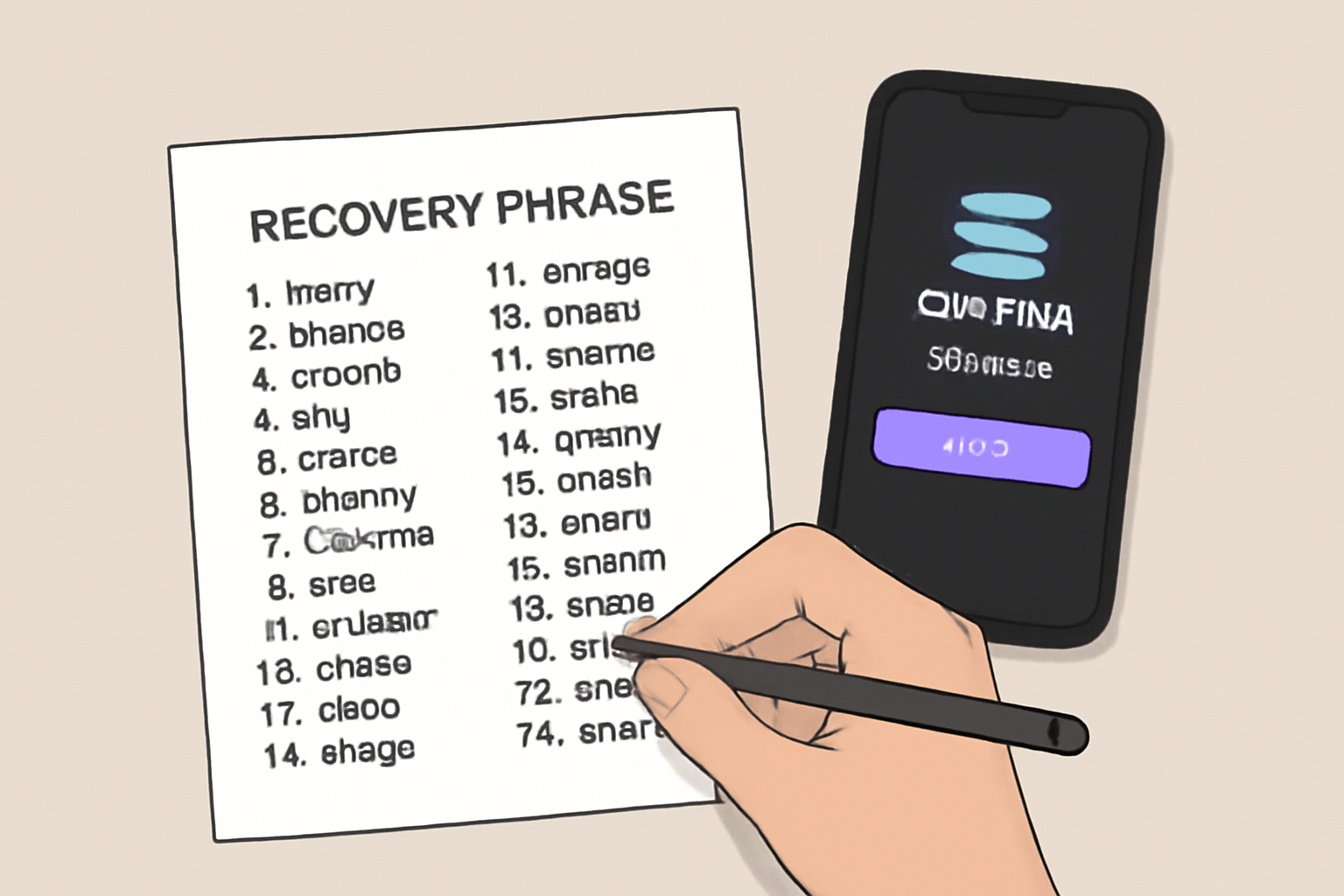
- Create or Import a Wallet: Open your wallet app, follow prompts, and secure your 24-word recovery phrase offline.
Need more detailed wallet setup guidance? Check out this step-by-step guide for wallet setup on Solana Saga.
Seed Vault: The Heart of Saga’s Security
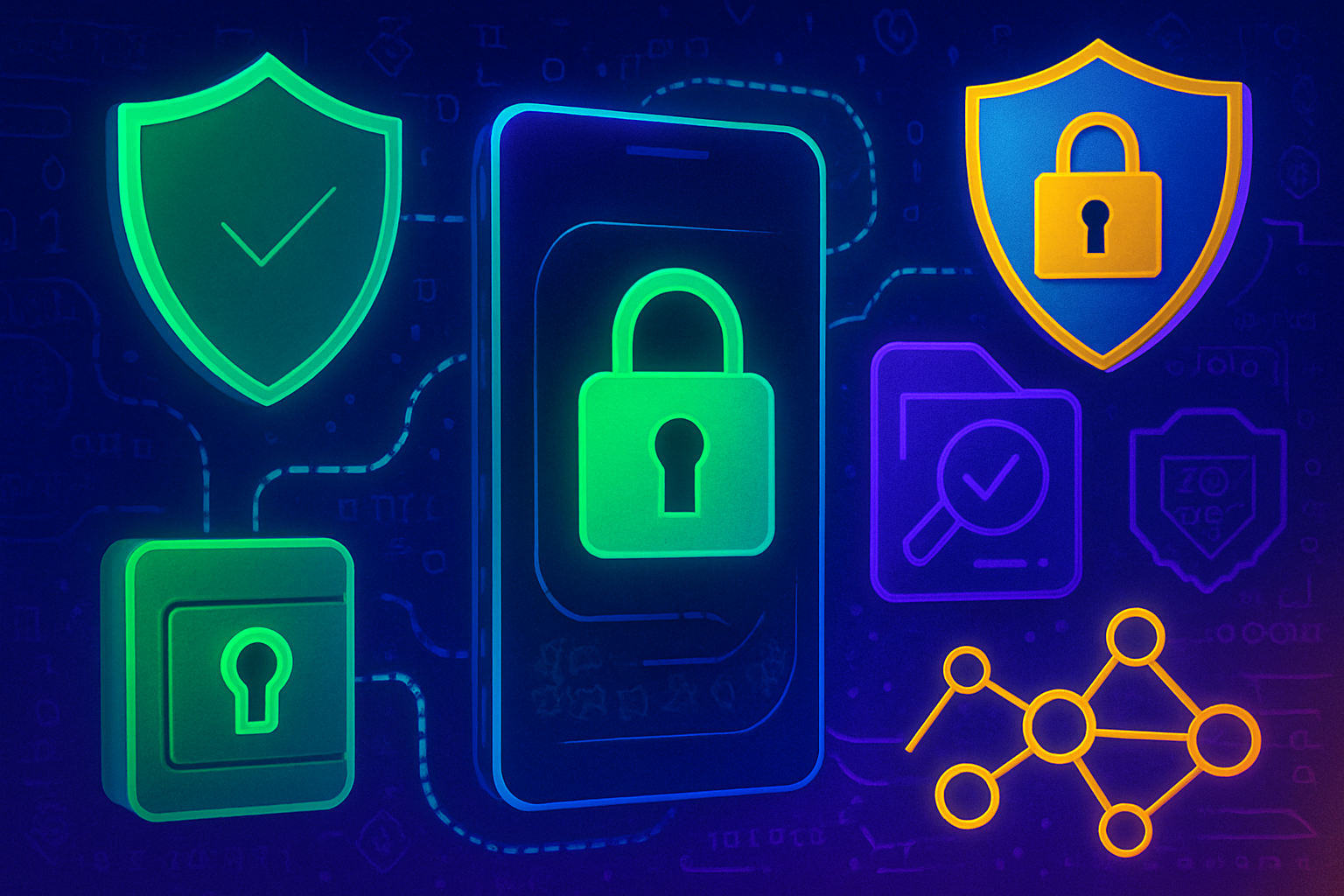
The Seed Vault is what sets Solana Saga apart from generic Android devices. It leverages the Qualcomm Secure Execution Environment to encrypt and process your private keys, ensuring even if your phone is compromised, your secrets stay safe. When setting up your wallet, make sure to:
- Store your recovery phrase offline (never take a screenshot or upload it to the cloud)
- Enable biometric authentication for transaction approvals
- Use only the official Solana dApp Store for wallet downloads
Pro tip: If you ever need to restore your wallet, never enter your seed phrase on a device you don’t trust. The Seed Vault keeps your keys isolated from the main operating system, but your vigilance is still your best defense.
Funding Your Wallet and Exploring DeFi
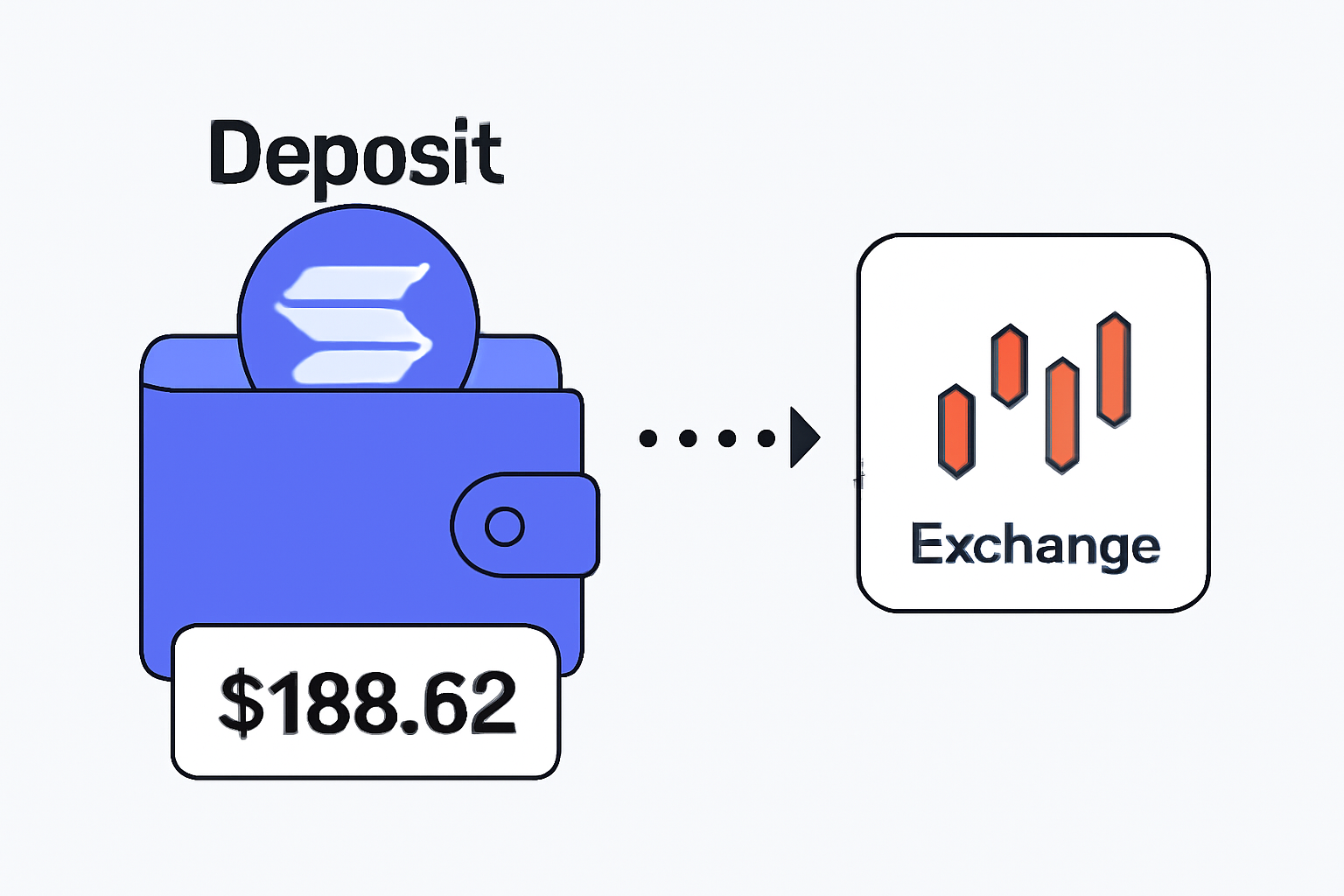
Once your wallet is set up, you’ll need to fund it with SOL. As of now, SOL trades at $188.62, so plan your initial deposit accordingly. Transfer SOL from a reputable exchange like Coinbase, Kraken, or Binance directly to your Saga wallet address. With your wallet funded, you’re ready to explore the rich world of Solana DeFi apps, staking, yield farming, and NFT trading, all from your phone.
For a deeper dive into using DeFi apps on mobile, visit our complete guide for Saga phone users.
Now that you’re equipped with a secure, funded wallet, it’s time to maximize your Solana Saga experience. The device’s dedicated dApp Store gives you access to the most reliable and innovative DeFi platforms in the Solana ecosystem. Whether you want to stake SOL, provide liquidity, or trade NFTs, everything can be done seamlessly and securely from your phone.
Best Practices for Ongoing Mobile DeFi Security
Even with hardware-level protections like the Seed Vault, your vigilance is essential. Here are some actionable tips for maintaining top-tier mobile DeFi security:
- Regularly update your device and apps: Security patches close vulnerabilities that hackers exploit. Check for updates weekly.
- Review app permissions: Only grant wallet and DeFi apps the permissions they truly need, avoid unnecessary access to contacts, SMS, or storage.
- Monitor for suspicious activity: Enable wallet notifications so you’re instantly alerted to any transaction. If something looks off, act fast.
- Stay informed about discontinued support: With Solana Saga’s official updates ending after less than two years, be extra cautious. Unsupported software can expose you to new threats, so consider transitioning to another secure device if critical vulnerabilities emerge.
If you want more advanced strategies, check out our security-focused guide for Saga users.
What to Do If You Suspect a Security Breach
Time is of the essence if you notice anything unusual, unauthorized transactions, unexpected device behavior, or new apps you didn’t install. Immediately:
- Disconnect your phone from Wi-Fi and mobile data.
- Transfer your funds to a new wallet on a secure device.
- Reset your Saga to factory settings and re-enable all security features.
- Never reuse compromised recovery phrases or passwords.
Your security is only as strong as your response. The Seed Vault adds a powerful layer of protection, but human vigilance is irreplaceable.
Staying Ahead in the Mobile-First DeFi Revolution
The Solana Saga phone remains a game-changer for mobile-first crypto users, but the landscape is always evolving. With SOL priced at $188.62, and new DeFi apps launching regularly, staying informed is critical. Join communities, follow trusted security experts, and bookmark our site for the latest news, reviews, and guides tailored for Saga users and mobile DeFi enthusiasts.
Ready to push your mobile crypto journey further? Explore our mobile-first guide for power users and discover how to make the most of every on-chain opportunity, safely and efficiently.

No comments yet. Be the first to share your thoughts!