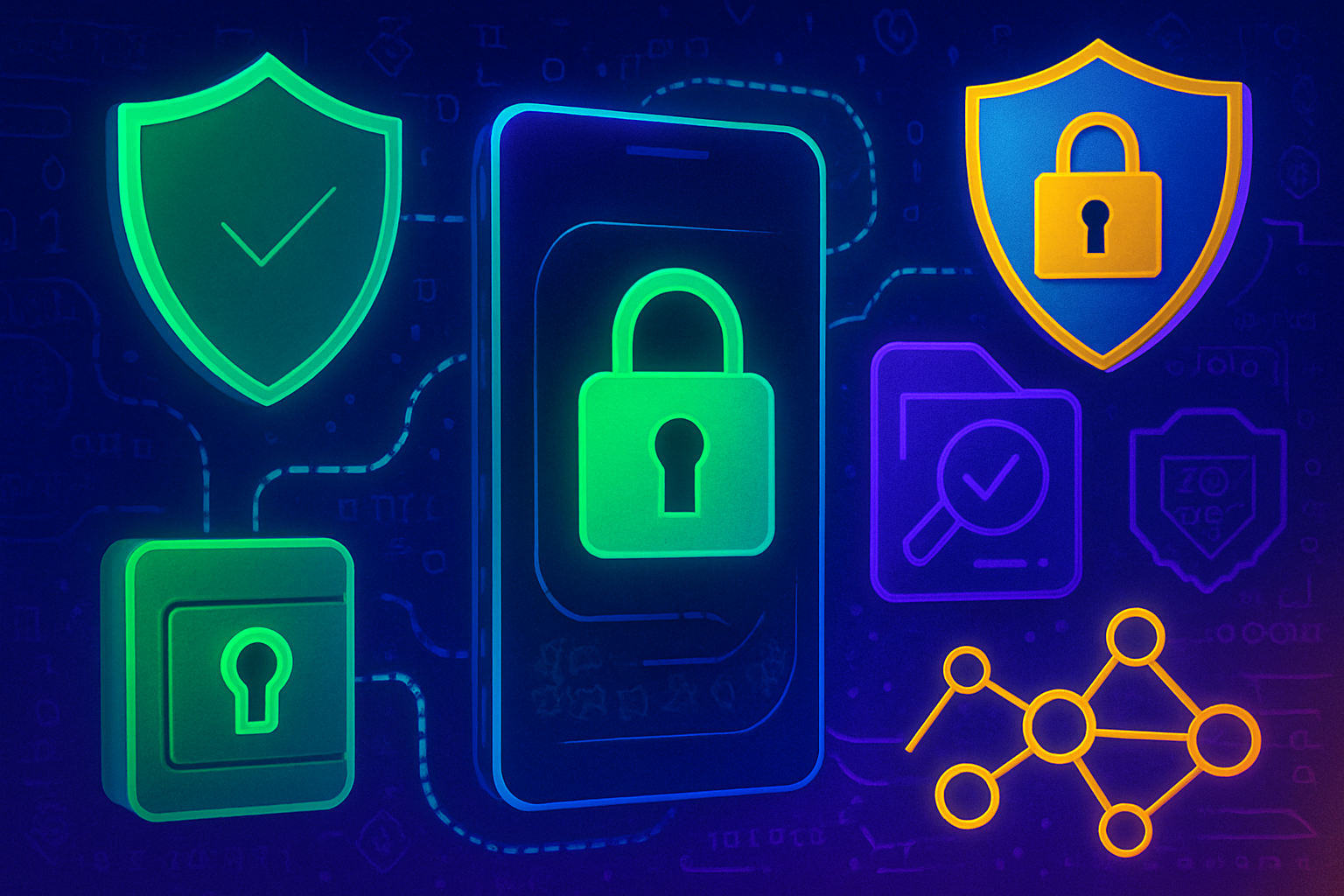
The Solana Saga phone is more than just a flagship Android device - it’s a purpose-built gateway to the future of mobile-first decentralized finance (DeFi). With its Solana Mobile Stack (SMS), tamper-resistant Seed Vault, and native dApp Store, Saga raises the bar for secure, on-the-go crypto transactions. But unlocking this power requires a deliberate setup process and a clear understanding of mobile DeFi security best practices. In this guide, we’ll walk you through the essential steps to get your Solana Saga ready for secure DeFi action, so you can move confidently in today’s fast-paced Web3 world.
Unboxing and Initial Device Security: Laying Your Foundation
After unboxing your Solana Saga, follow the on-screen prompts to select your language, connect to Wi-Fi, and complete the Android setup. Pause before diving into any crypto activity - your first priority is device security. Head straight to Settings and gt; System and gt; System update and ensure your firmware is current. Regular updates protect you from newly discovered vulnerabilities and compatibility headaches.
Next, set up a robust screen lock. Choose between PIN, password, or biometric authentication (fingerprint or facial recognition). This simple step is one of the most effective deterrents against unauthorized access if your phone is lost or stolen.
Configuring Seed Vault: The Heart of Secure Mobile DeFi
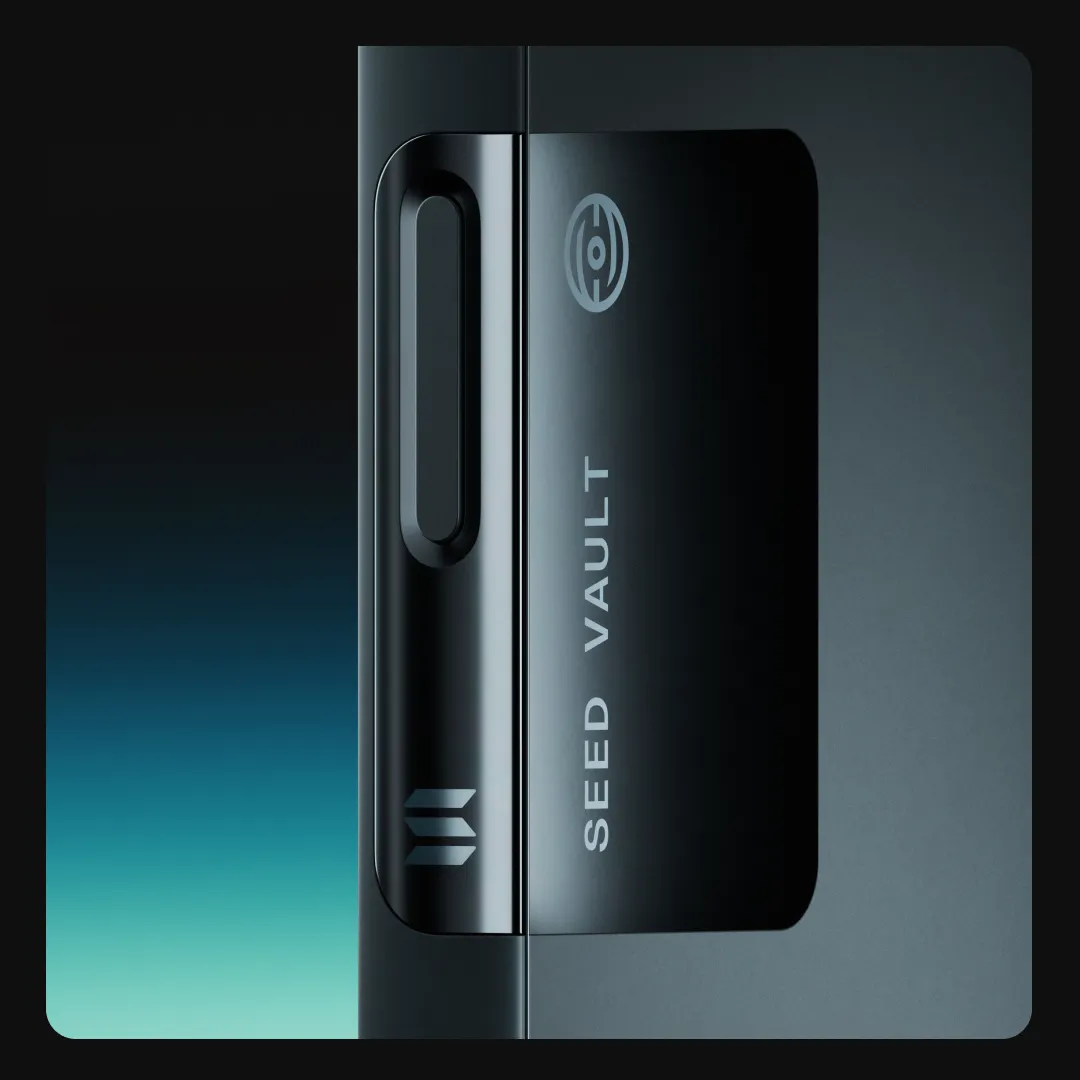
The Seed Vault is what distinguishes Saga from conventional smartphones. It’s a hardware-backed enclave for storing your private keys - ensuring that even advanced malware can’t extract your secrets. To activate:
- Open Settings, scroll down to Seed Vault, and follow prompts to initialize it.
- Create a strong passcode unique from your main device lock.
- If prompted, enable biometric unlock for added convenience without sacrificing security.
The Seed Vault never exposes your seed phrase to Android or any app environment - signing happens inside this protected enclave. For extra peace of mind, assign a unique nickname to each wallet you manage in Seed Vault. This minimizes confusion if you use multiple wallets for different DeFi protocols.
Navigating the Solana dApp Store: Trusted Apps Only
Your next stop is the pre-installed Solana dApp Store - a curated marketplace featuring only vetted apps from across the Solana ecosystem. Here’s why that matters: sideloaded APKs or apps from unofficial sources are among the most common vectors for malware targeting crypto users. By sticking with the dApp Store, you dramatically reduce risk while enjoying seamless integration with SMS-powered features like transaction signing via Seed Vault.
To install a wallet:
- Open the dApp Store and search for reputable wallets such as Phantom or Solflare.
- Select your preferred option and tap “Install. ”
- Once installed, open the wallet app and choose whether to create a new wallet or import an existing one using your recovery phrase.
Pro tip: Always store your recovery phrase offline in a physically secure location - never upload it to cloud storage or enter it outside of trusted environments like Seed Vault. For an expanded walkthrough on securing your setup process, see our detailed guide at this link.
Wallet Permissions and App Hygiene: Small Steps With Big Impact
Your wallet app may request permissions such as camera (for QR scanning) or notifications (for transaction alerts). Grant only necessary permissions; review them periodically in Settings and gt; Apps and amp; Notifications. If unsure about any request, consult community forums or official documentation before approving access - vigilance here reduces attack surface dramatically.
With your wallet installed and permissions configured, you’re now ready to explore the world of mobile DeFi directly from your Solana Saga. But before swapping tokens or staking assets, let’s reinforce the security mindset that sets seasoned users apart from the crowd.
Security Best Practices: Protecting Your Digital Assets
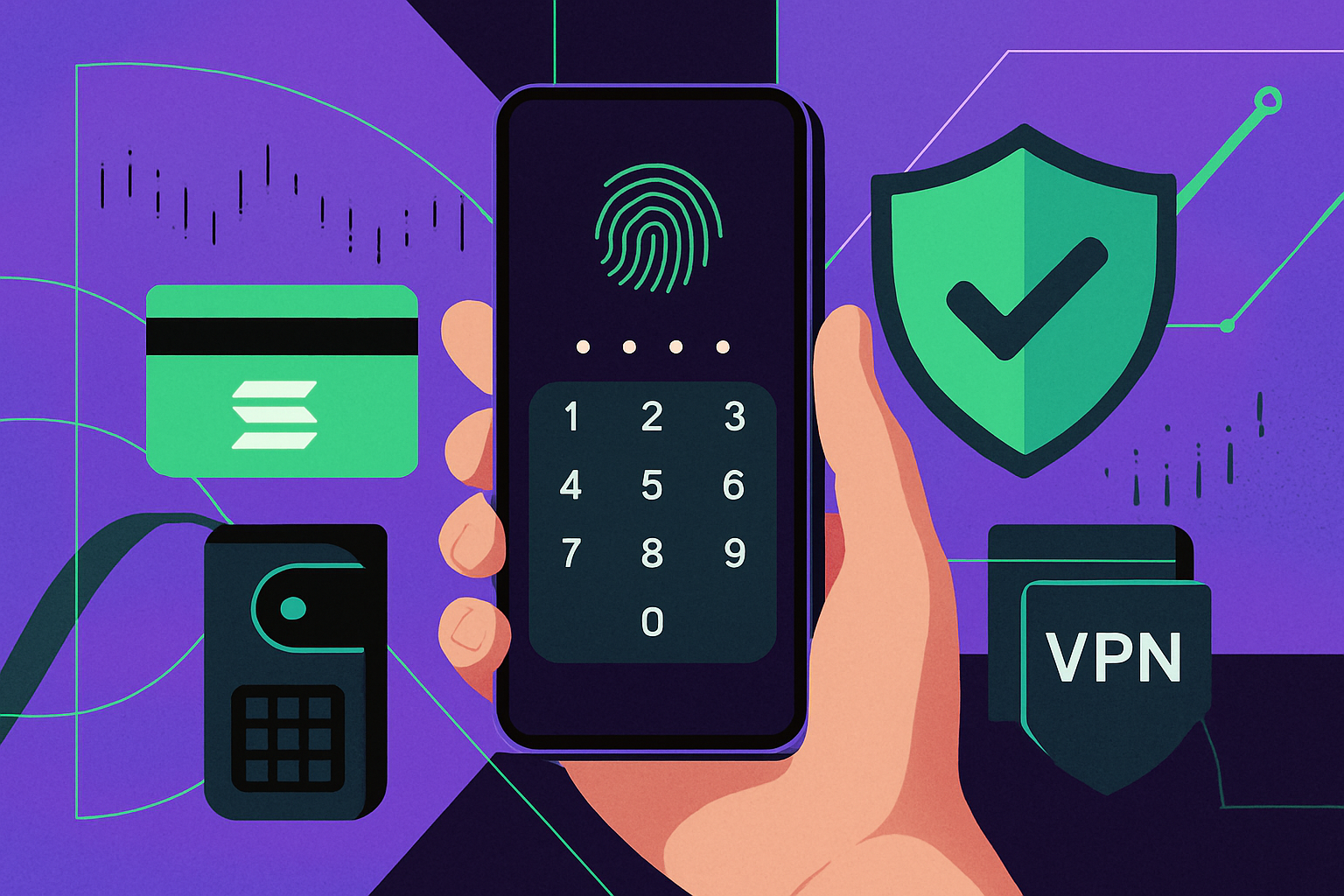
Mobile DeFi security is not a one-time task but an ongoing discipline. The following habits will help you stay ahead of evolving threats and ensure your assets remain safe:
- Seed Phrase Management: Write down your 24-word seed phrase on paper (never digitally) and store it in a physically secure place. Consider using a fireproof safe or safety deposit box.
- Seed Vault Configuration: Set a unique, strong passcode for Seed Vault access. Biometric authentication adds convenience but should never be your only line of defense.
- App Source Verification: Only download wallets and DeFi apps from the official Solana dApp Store. Avoid third-party APKs at all costs.
- Transaction Verification: Always double-check recipient addresses before confirming transfers, phishing attacks often use lookalike addresses.
- Ongoing Updates: Regularly update both your device firmware and wallet apps to patch vulnerabilities as they’re discovered.
If you ever suspect compromise or experience unexpected app behavior, immediately disconnect from Wi-Fi, reboot your Saga, and consult official support channels or trusted community forums for guidance.
Troubleshooting Common Issues: Staying Agile
No technology is perfect, occasional hiccups are inevitable. Here’s how to handle common setup or operational issues with confidence:
- If a wallet app freezes during setup: Clear its cache/data via Settings and gt; Apps and amp; Notifications and gt;
Troubleshooting Common DeFi App Issues on Your Solana Saga Phone
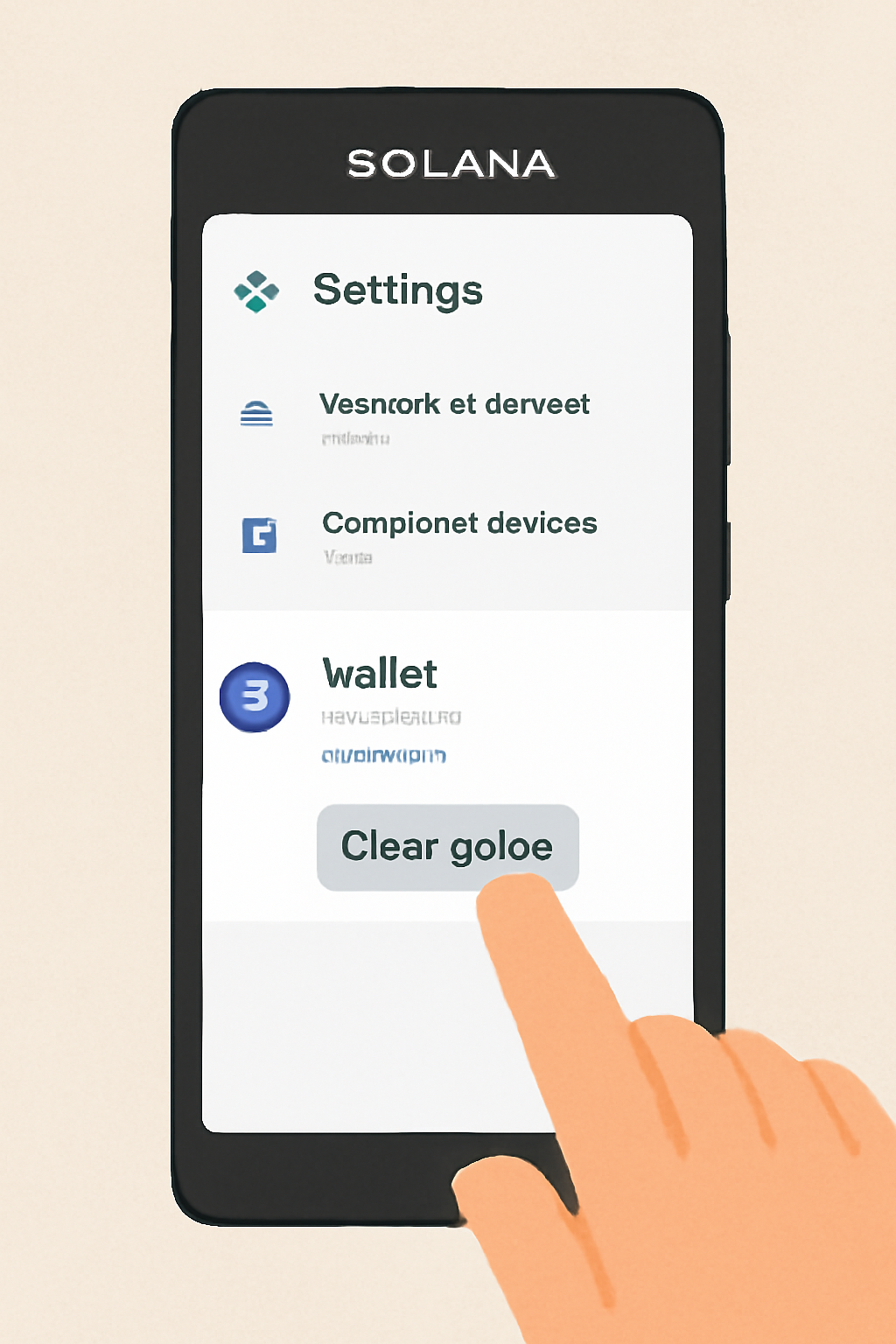 Clear Your Wallet App CacheIf your wallet app is freezing or behaving unexpectedly, clearing its cache can resolve many issues. Go to Settings > Apps > [Your Wallet App] > Storage & cache, then tap 'Clear cache.' This removes temporary files without affecting your wallet or funds.
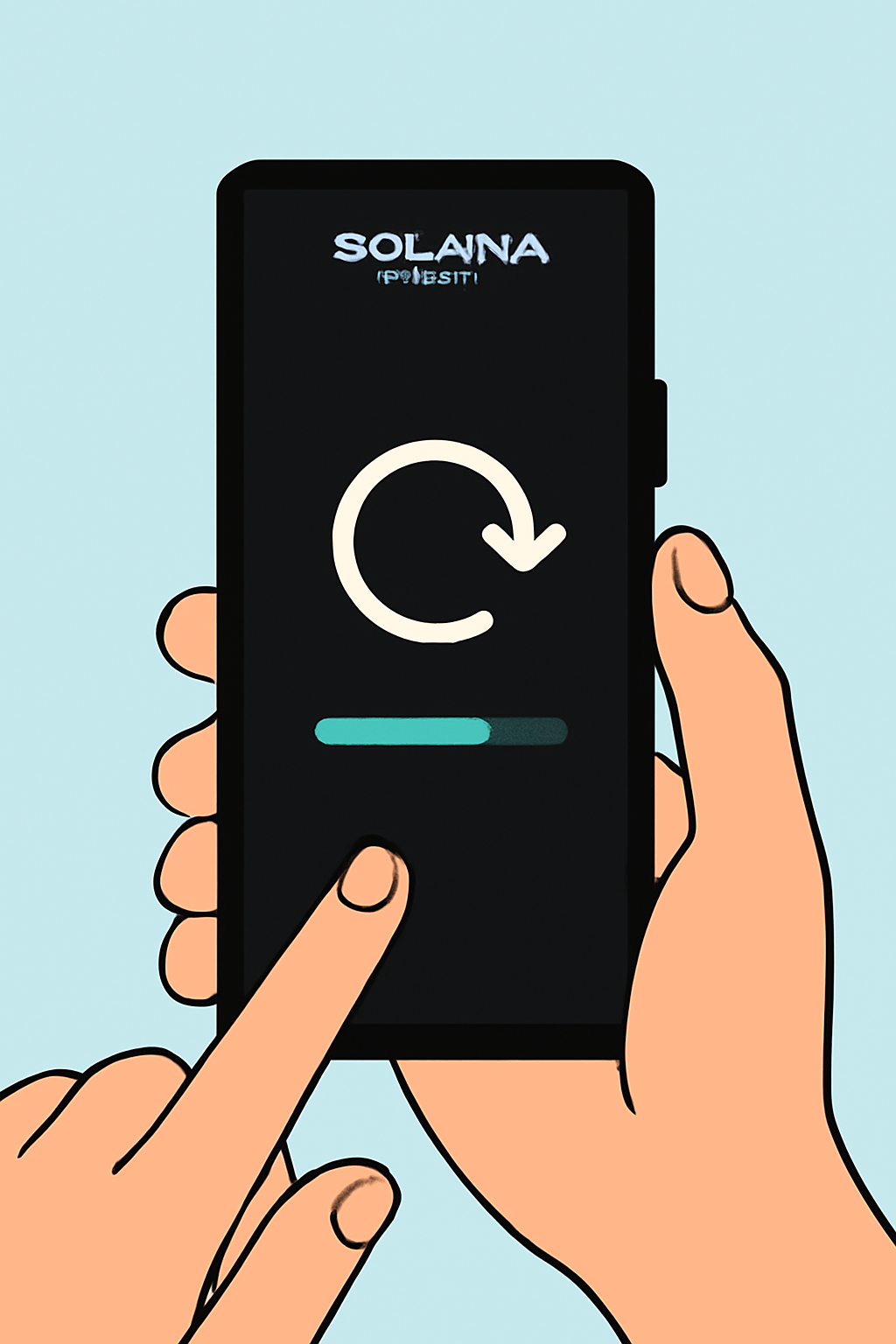 Reboot Your Saga PhoneRestarting your device resets secure enclave sessions, which helps fix authorization or signing errors with DeFi apps. Hold the power button, select 'Restart,' and allow your Saga phone to reboot completely before reopening your wallet or dApp.
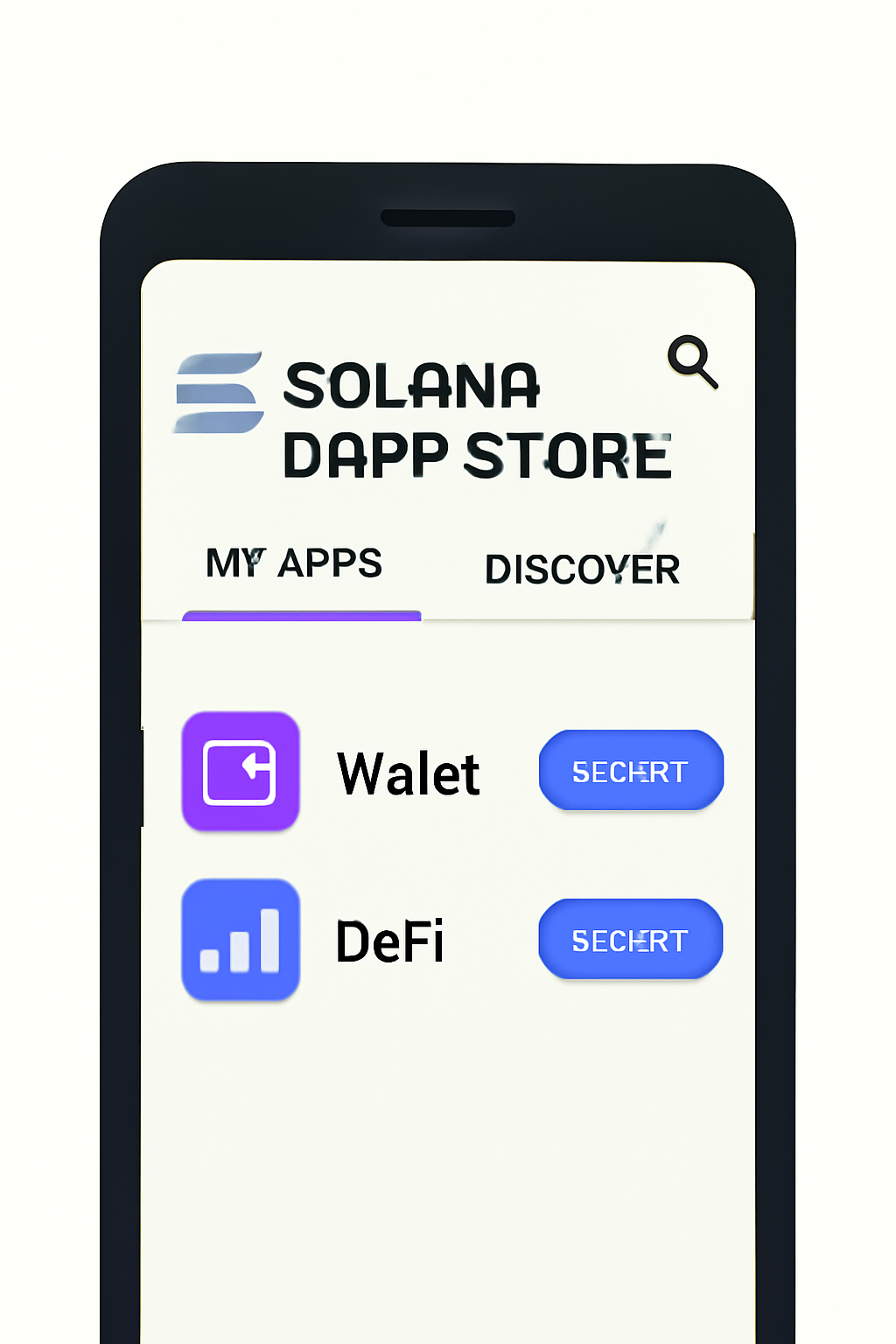 Update DeFi Apps via the Solana dApp StoreOutdated apps may not be compatible with the latest protocols. Open the Solana dApp Store, go to 'My Apps,' and check for updates to your wallet and DeFi apps. Install any available updates to ensure optimal security and performance.
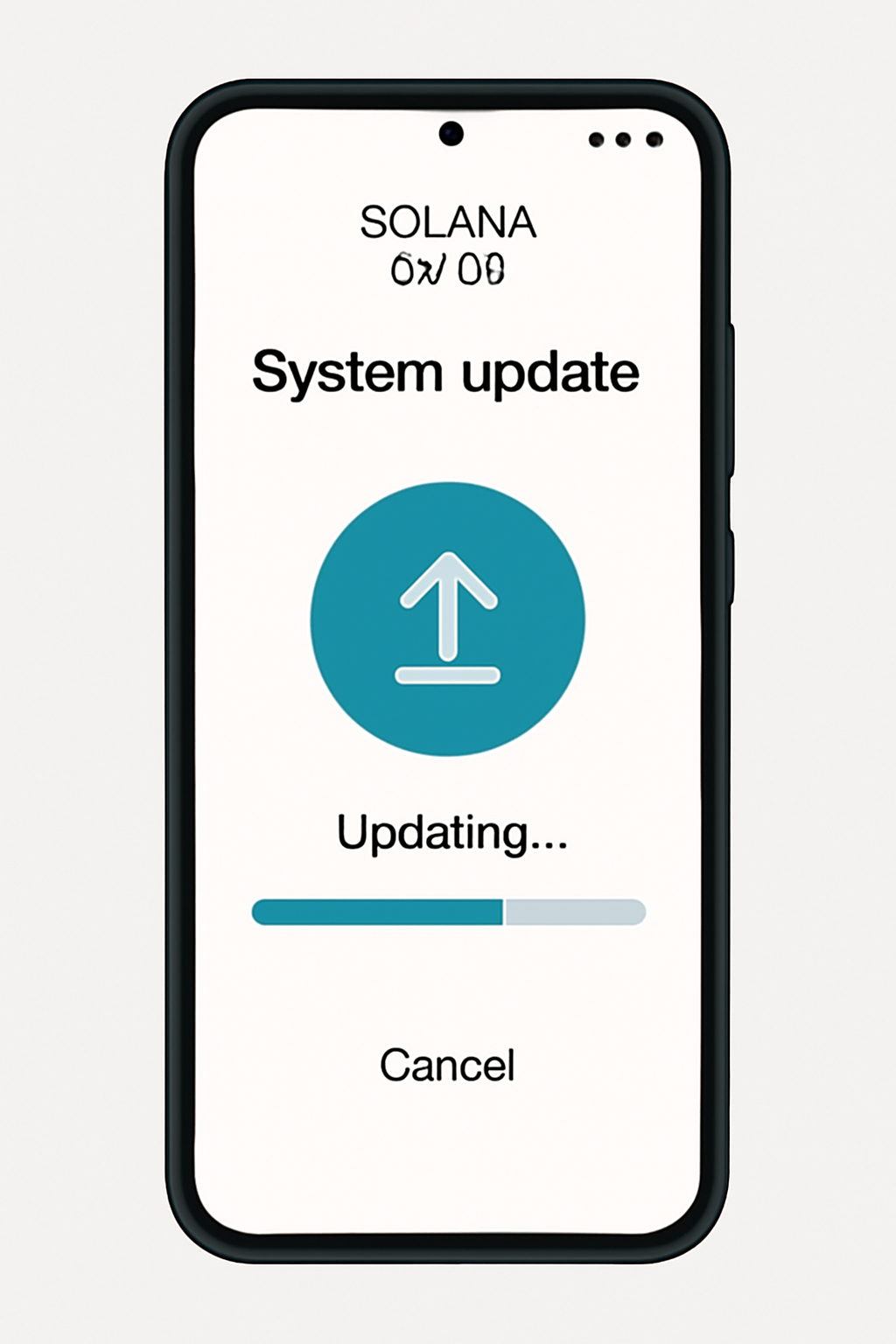 Update Your Saga Phone FirmwareKeeping your device firmware up to date is crucial for security and compatibility. Navigate to Settings > System > System update, and install any pending updates. This ensures your phone supports the latest DeFi features.
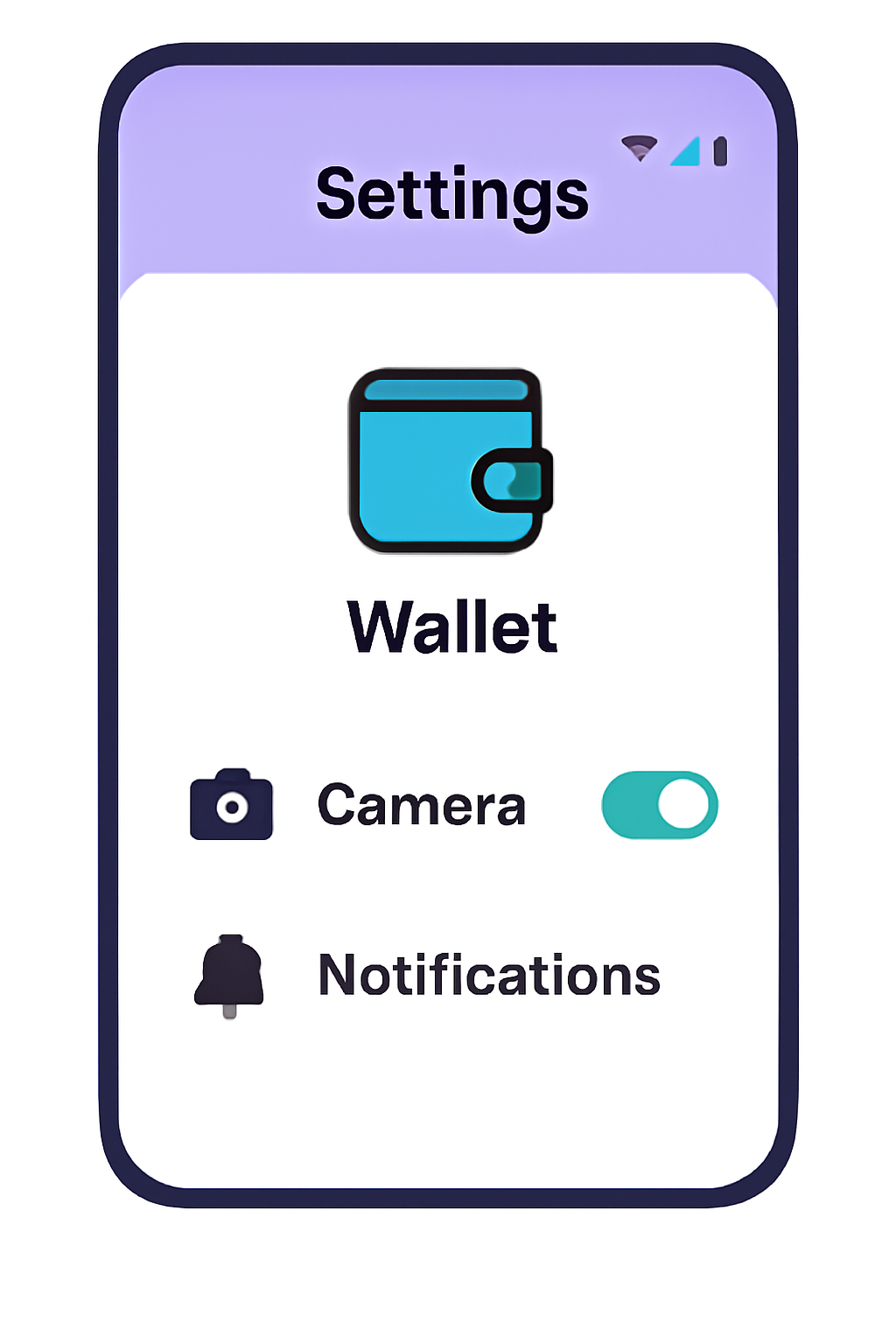 Check App PermissionsDeFi apps may require permissions like camera (for QR scanning) or notifications. Go to Settings > Apps > [Your Wallet App] > Permissions, and ensure all necessary permissions are enabled for smooth operation.
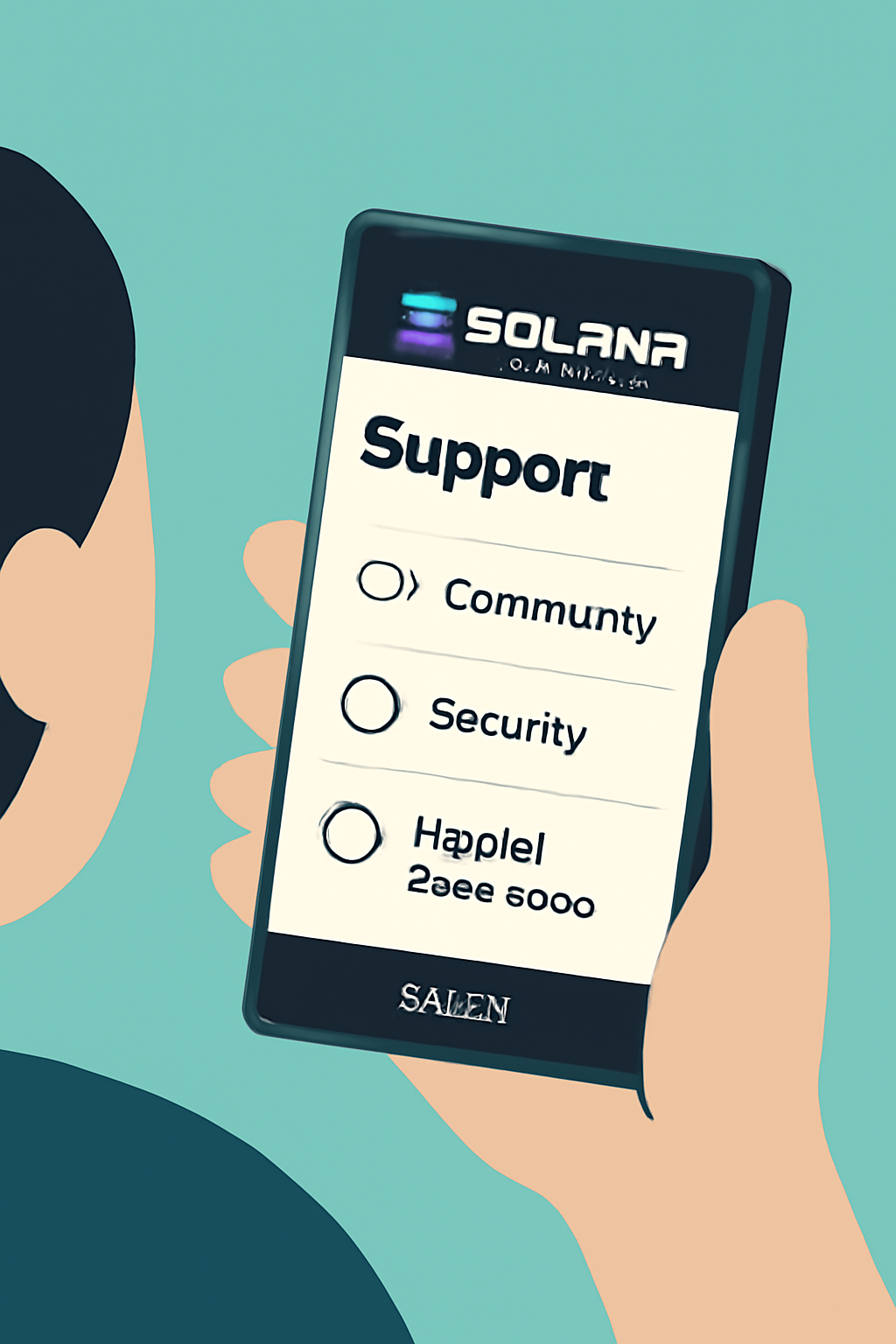 Seek Official Support if Issues PersistIf problems continue after these steps, consult the official documentation for your wallet or DeFi app, or visit Solana community forums for help. Never share your seed phrase or private keys when seeking support.
The combination of hardware-based Seed Vault protection, curated dApp Store access, and robust mobile security features makes Saga uniquely positioned for both new entrants and power users in Web3 finance. As adoption accelerates globally, expect more innovative apps leveraging SMS capabilities, and be sure to revisit security best practices as part of your regular routine.
The future of crypto is undeniably mobile-first. By starting with careful setup on devices like Solana Saga, you’re not just protecting funds, you’re building habits that will serve you across every blockchain innovation still to come. For deeper dives into specific protocols or advanced privacy tips on mobile, explore our related guides such as this comprehensive walkthrough.

No comments yet. Be the first to share your thoughts!